
BingX API Connection Guide
- 1
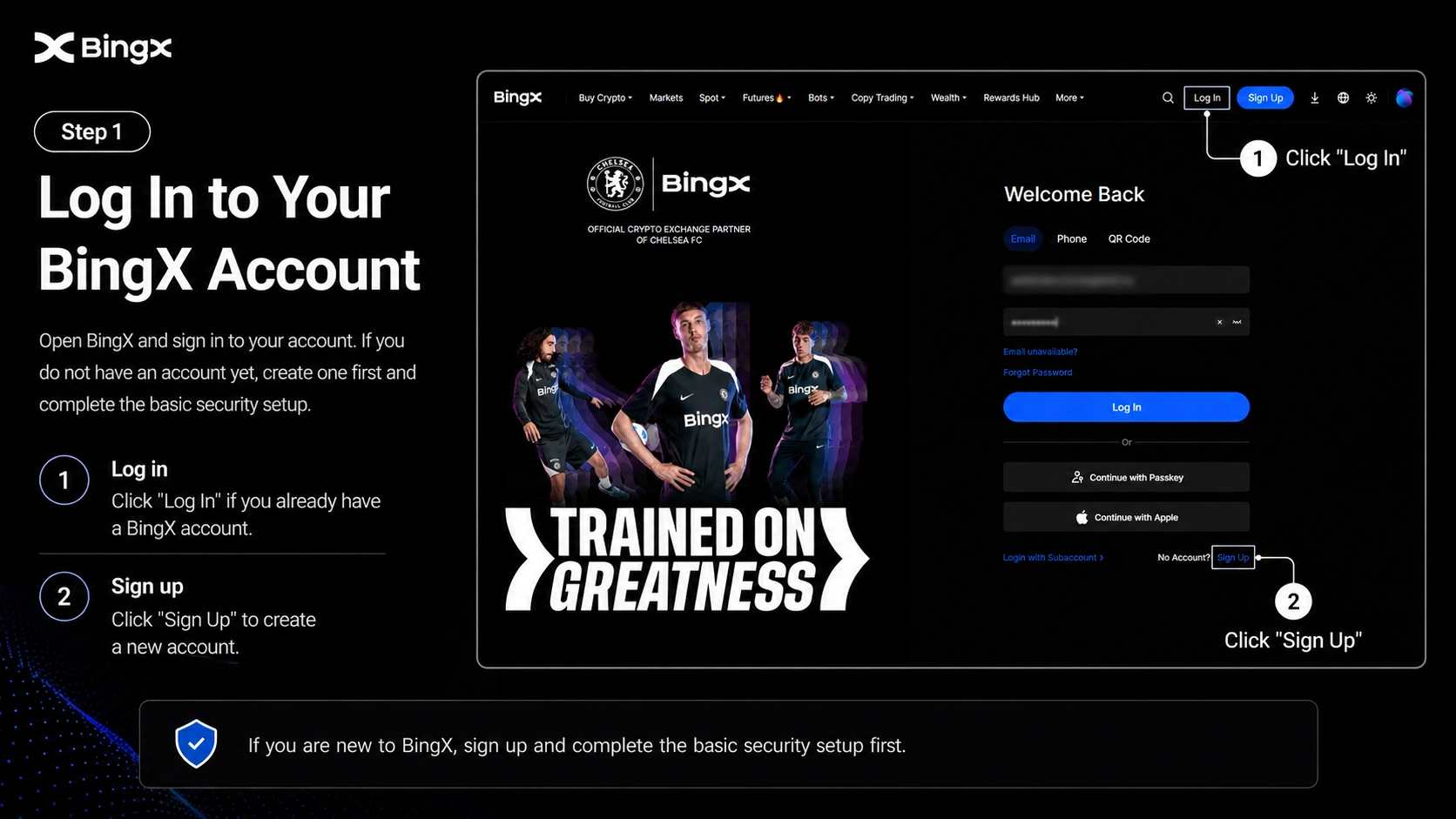
Log in to your BingX account
Open BingX and log in to your account. If you do not have an account yet, create one first and complete the basic security setup.
- 2
Check access to futures
Before connecting the API, open the Futures / Derivatives section on the exchange. If the exchange shows an activation window, trading guide, risk notice, or introductory steps, confirm them and complete the short setup. Usually, this is enough to activate futures trading on the account.
- 3
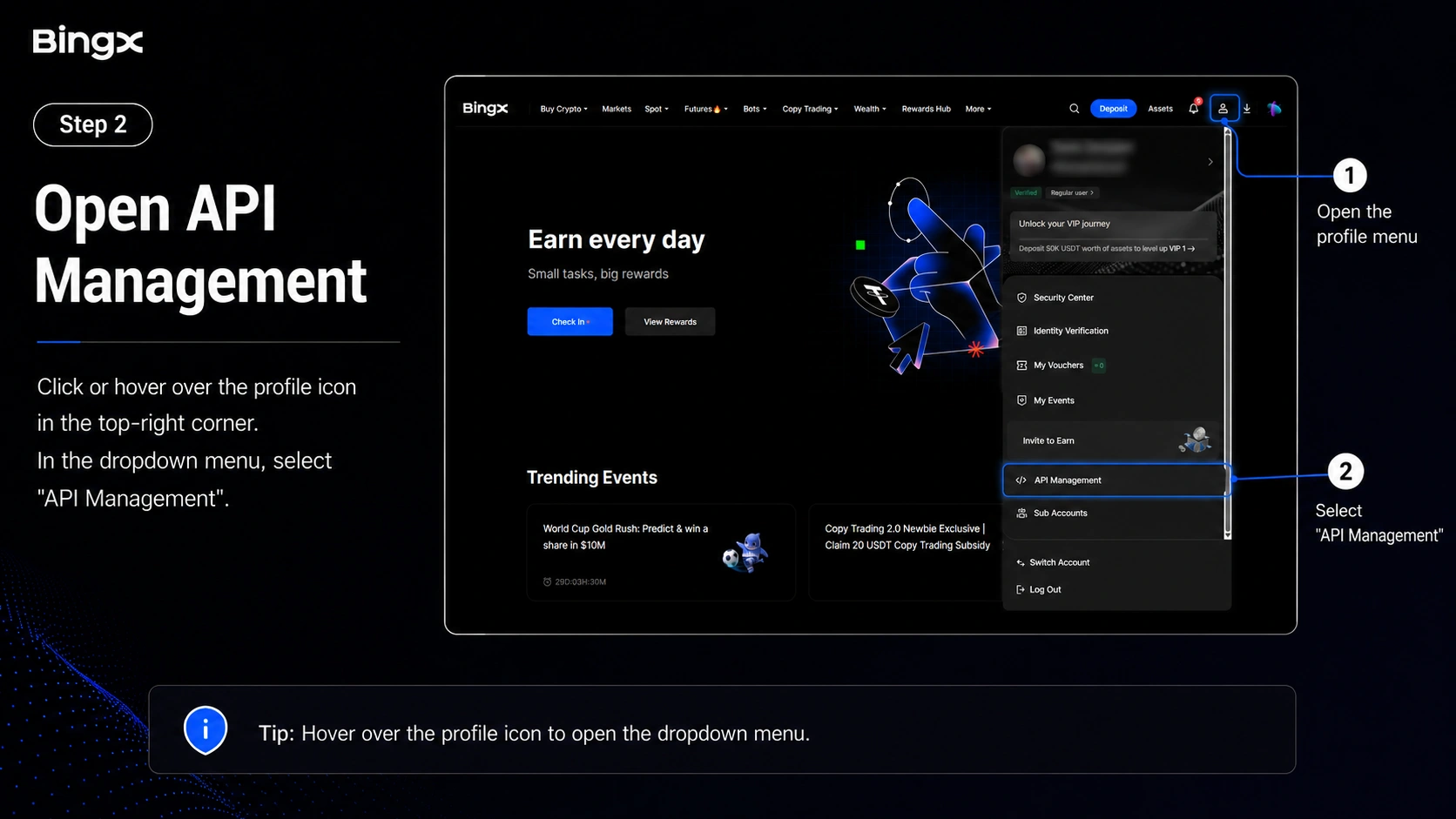
Open API Management
Click the profile icon in the top-right corner or hover over it. In the menu that opens, select API Management.
On mobile, you can either use search or find this section on the main page under Additional Services.
- 4
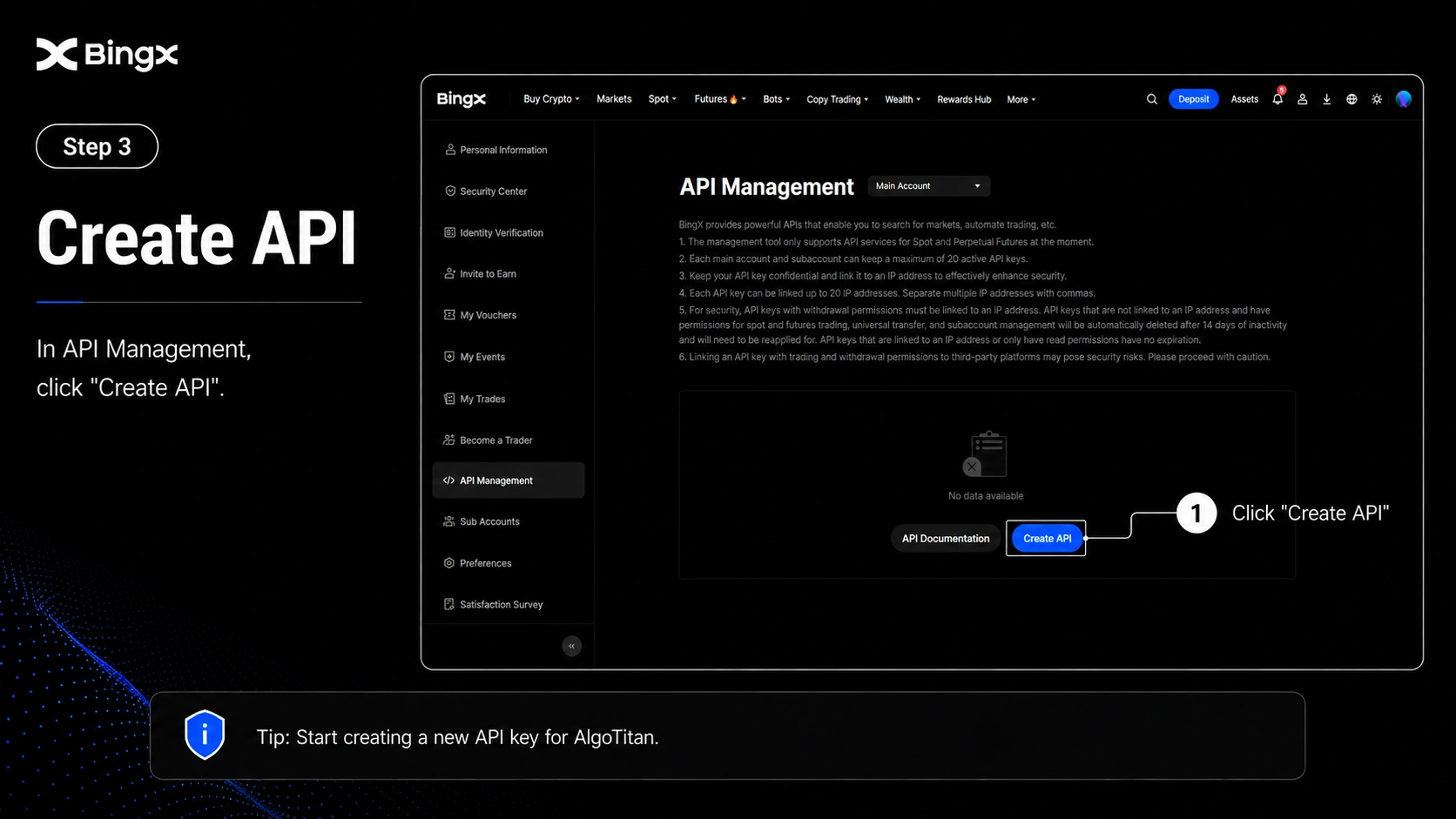
Create API
In the API Management section, click Create API.
- 5
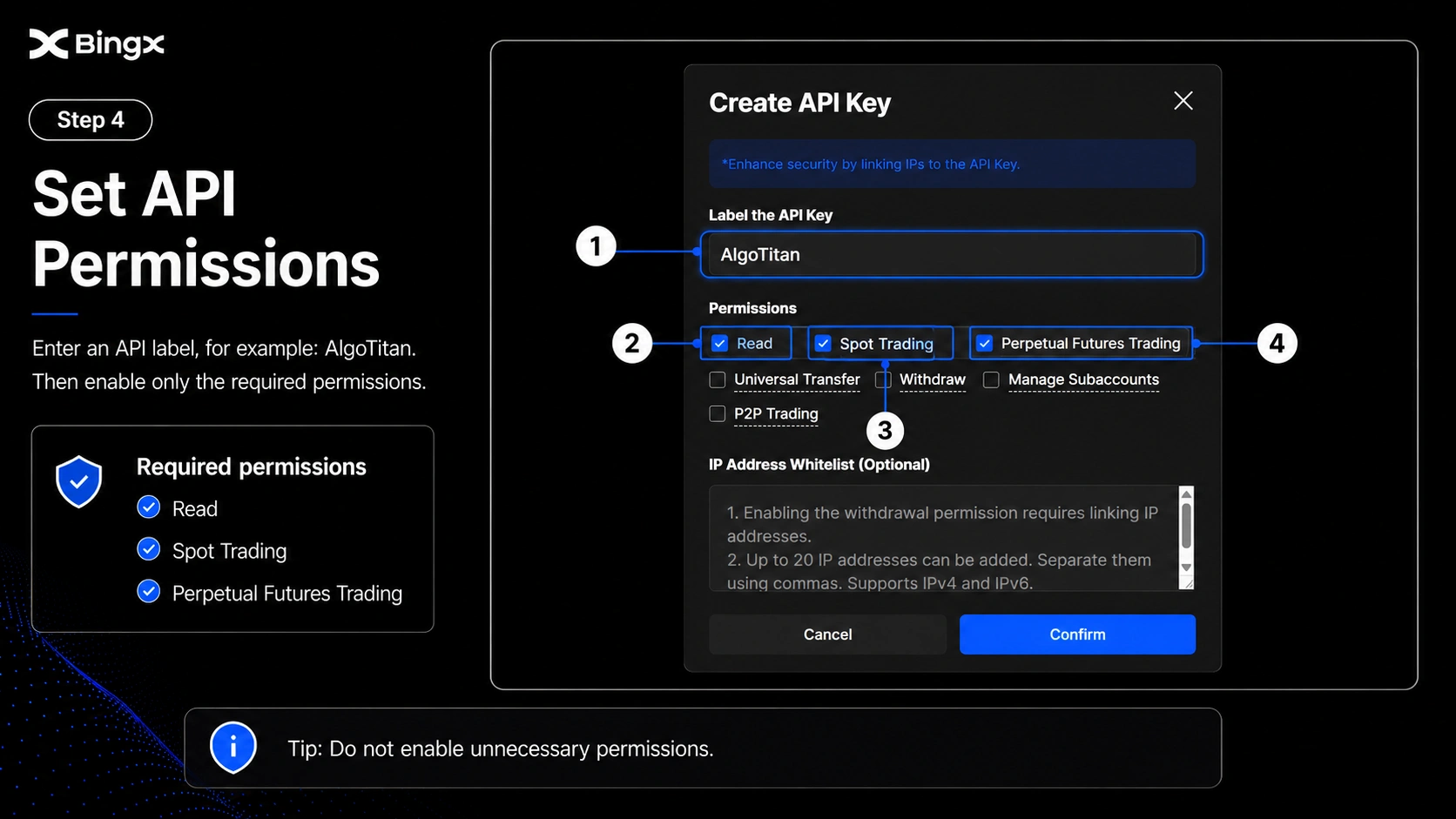
Set API parameters
Enter the API name, for example: AlgoTitan
In permissions, select:
- Read
- Spot Trading
- Perpetual Futures Trading
- 6
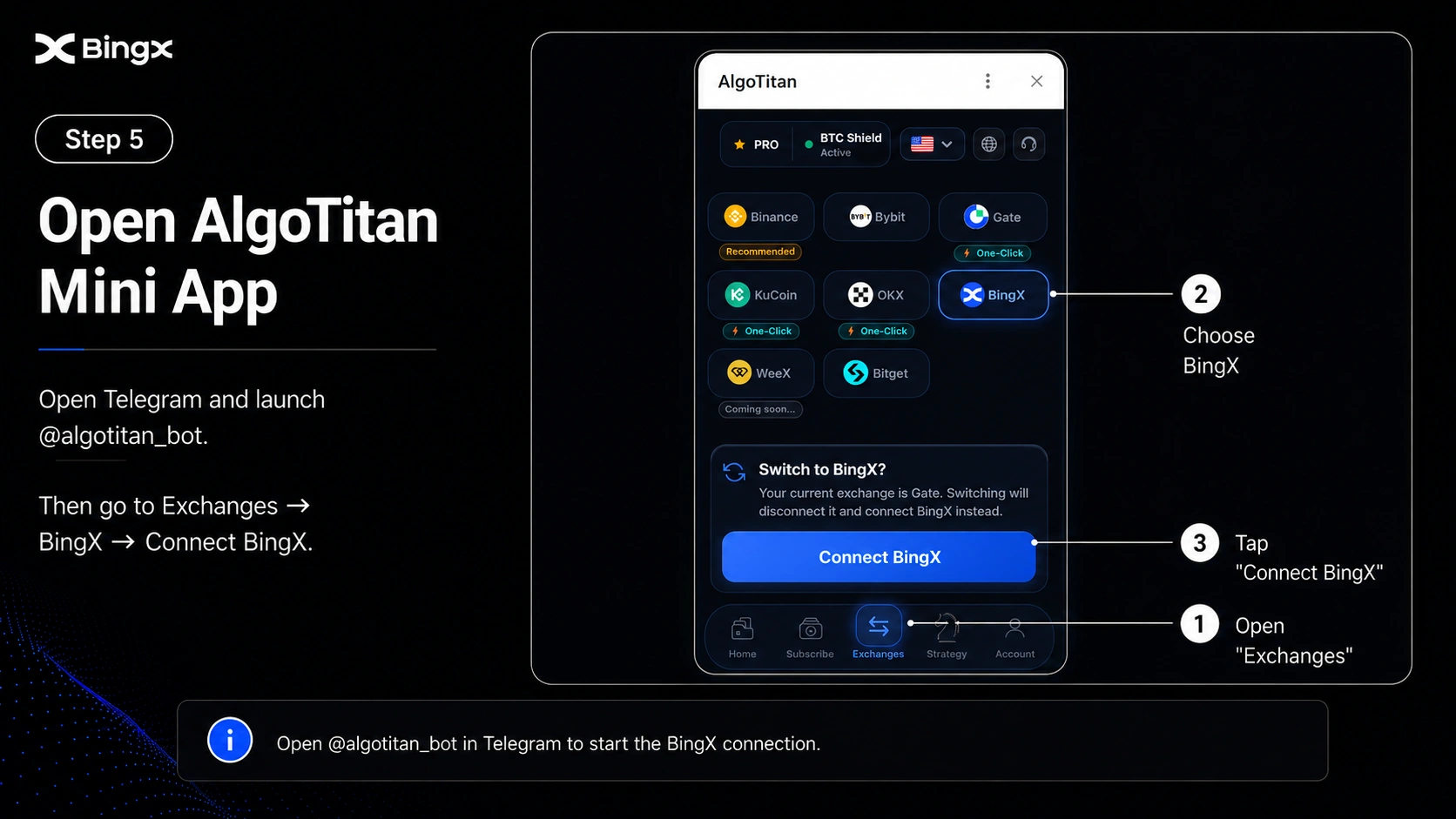
Open AlgoTitan Mini App
Go to Telegram and open @algotitan_bot.
Then open: Exchanges → BingX → Connect BingX
- 7
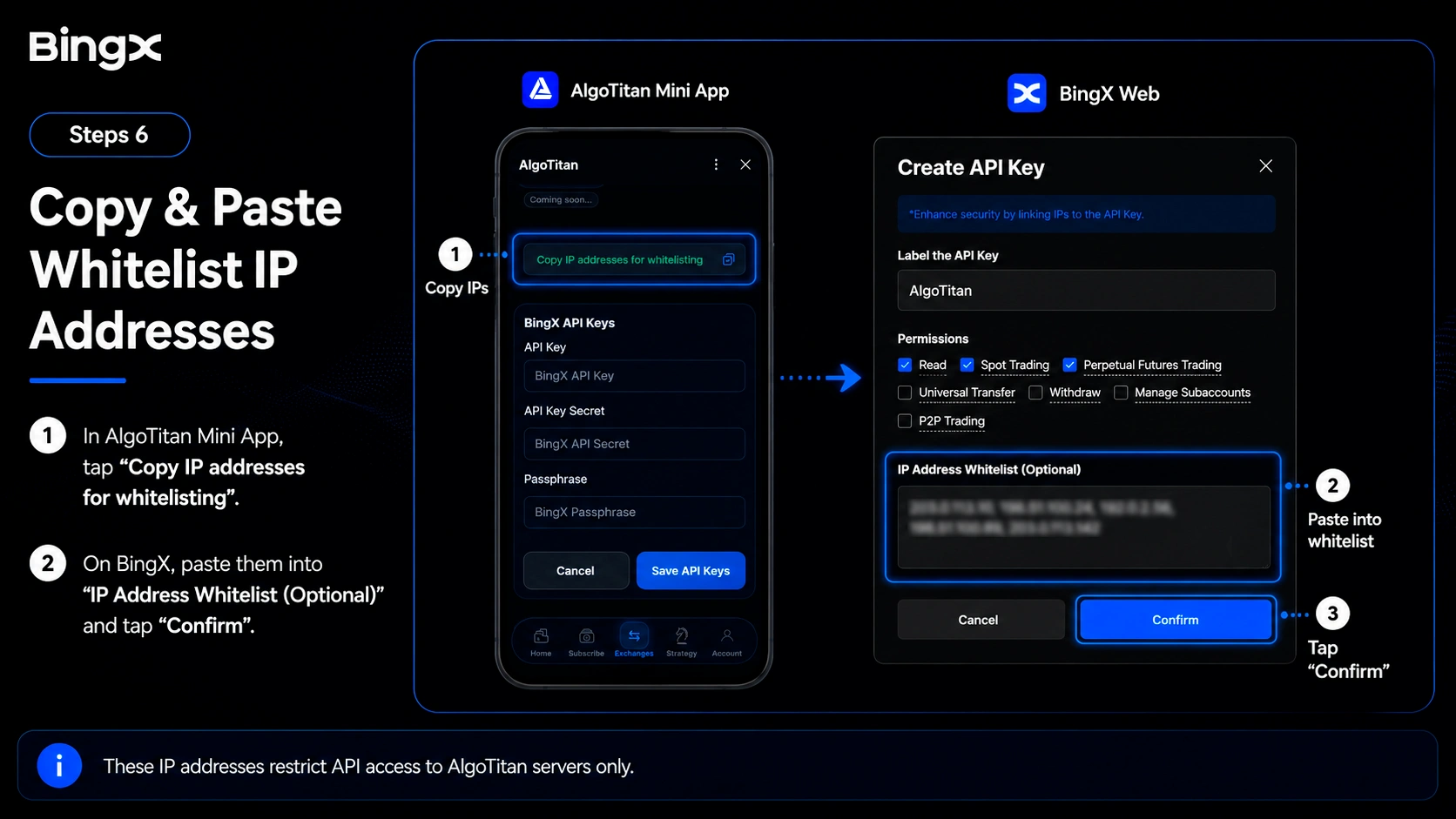
Copy and add IP addresses for whitelisting
In AlgoTitan Mini App, copy IP addresses for whitelisting, then return to BingX and paste them into the IP Address Whitelist (Optional) field. After that, click Confirm.
- 8
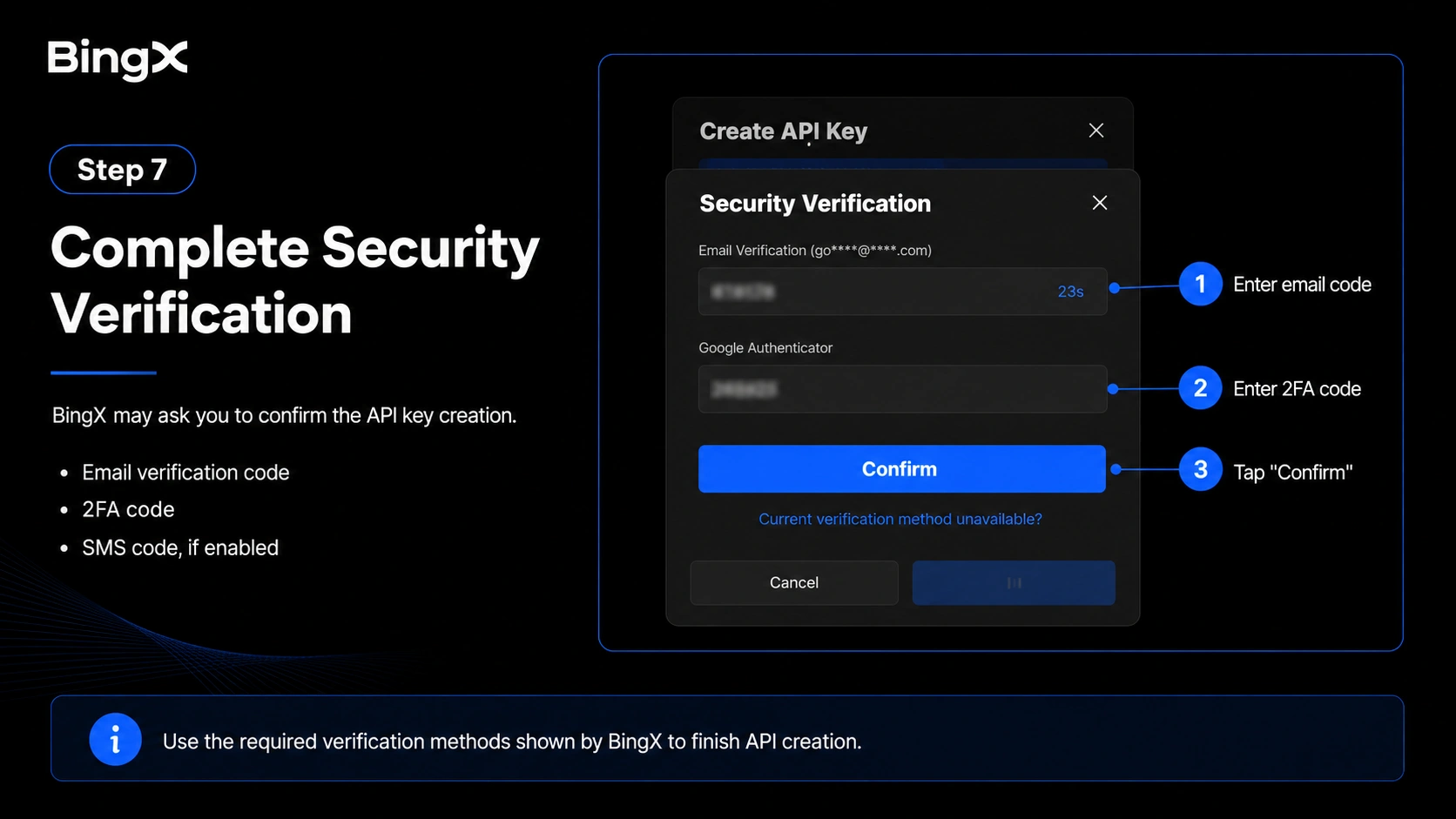
Complete security verification
BingX may ask you to confirm the API key creation.
Confirm the action through:
- email code
- 2FA code
- SMS code, if enabled
- 9
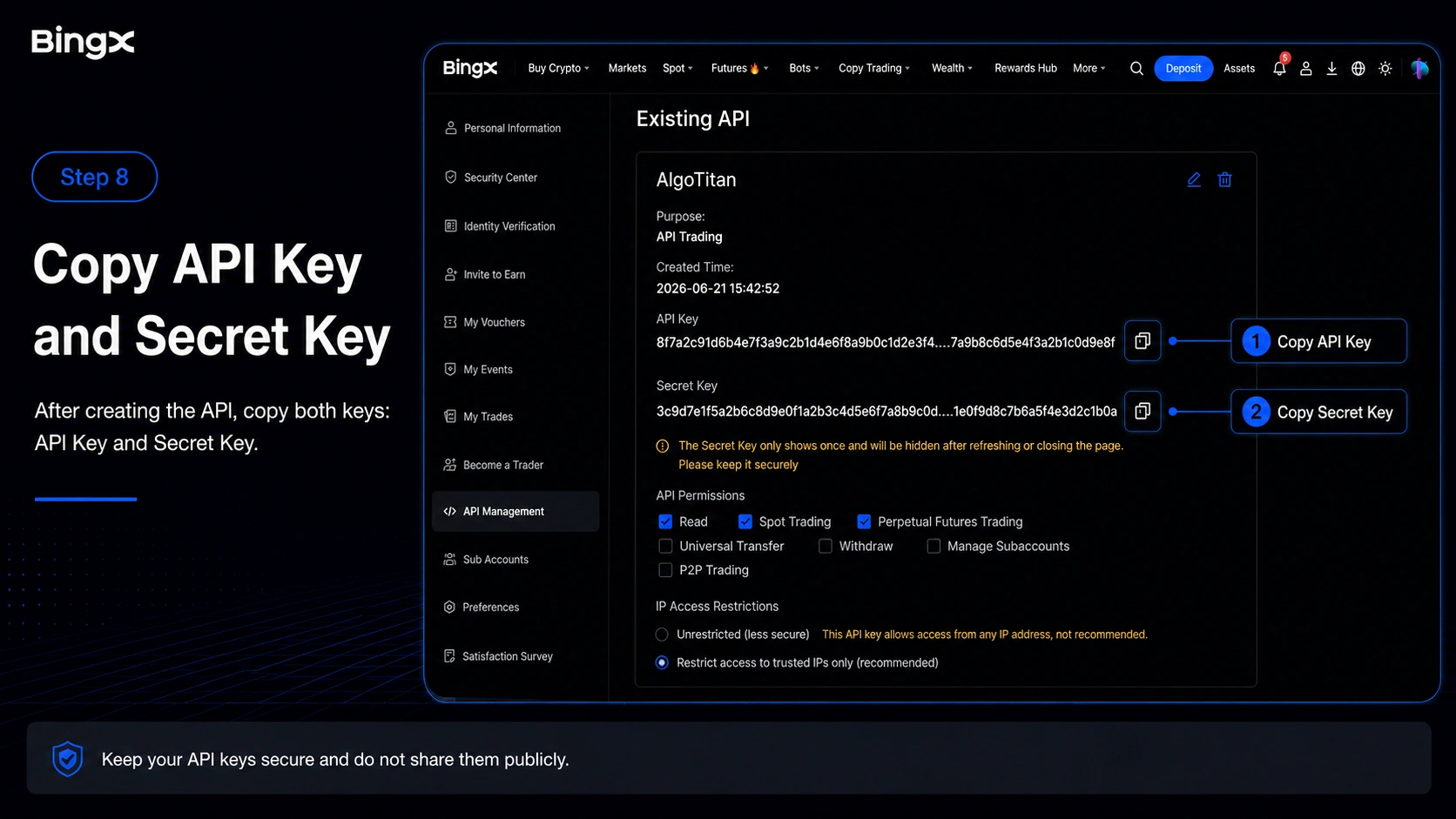
Copy API Key and Secret Key
After creating the API, copy: API Key and Secret Key.
- 10
Complete the BingX connection in AlgoTitan
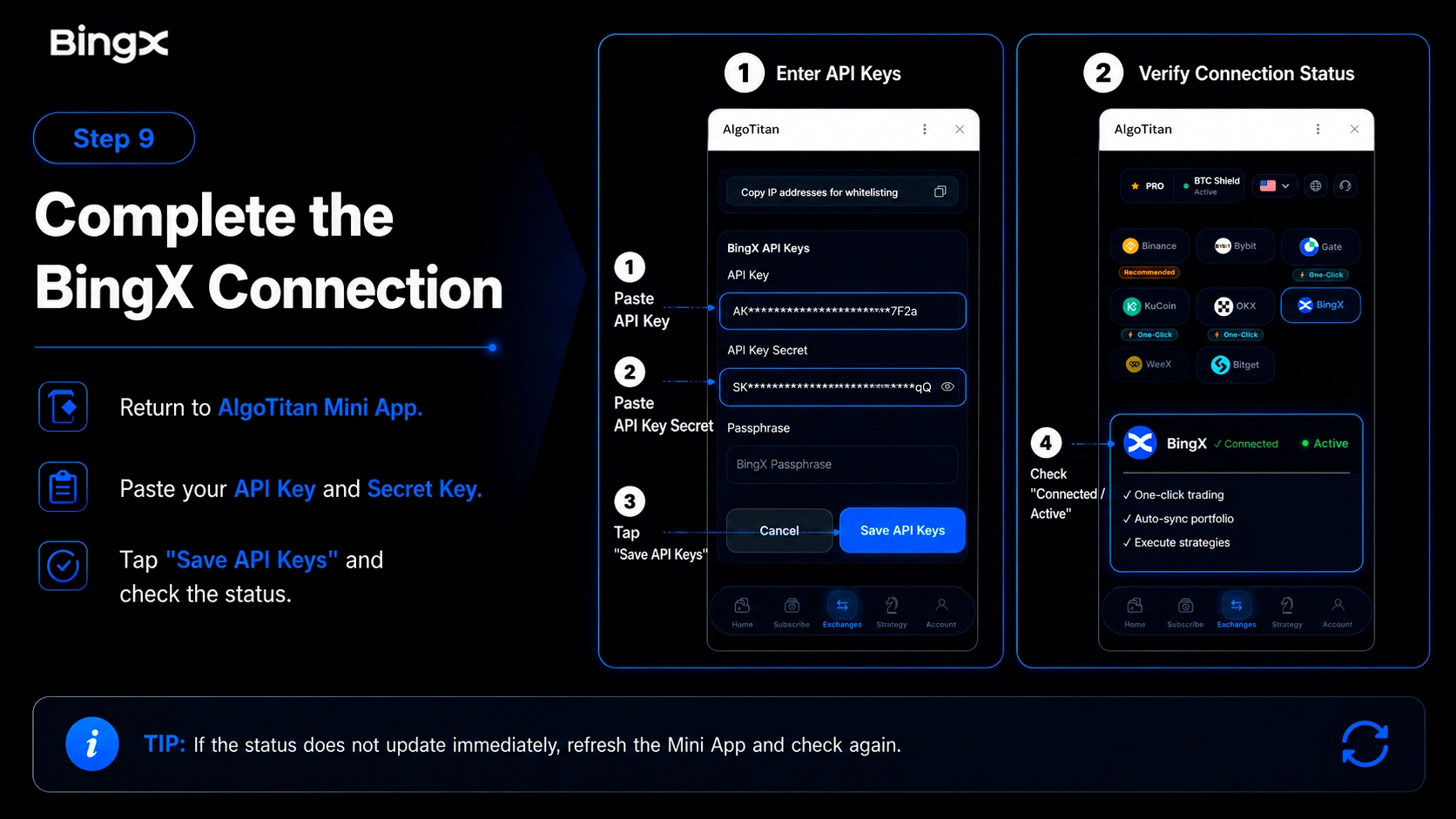
Return to AlgoTitan Mini App, paste API Key and Secret Key, then click Save API Keys. After saving, check the connection status – the status next to BingX should show Connected / Active. If the status does not update immediately, refresh the Mini App and check the connection again.
BingX notes
For BingX, manual connection through API Key and Secret Key is used. Before connecting, you need to create an API key on BingX, enable Read, Spot Trading, and Perpetual Futures Trading permissions, and add IP addresses for whitelisting from AlgoTitan. Secret Key must be saved immediately after API creation because it may not be available for viewing later. Do not enable withdrawal permissions or internal transfers.