
Binance API Connection Guide
- 1
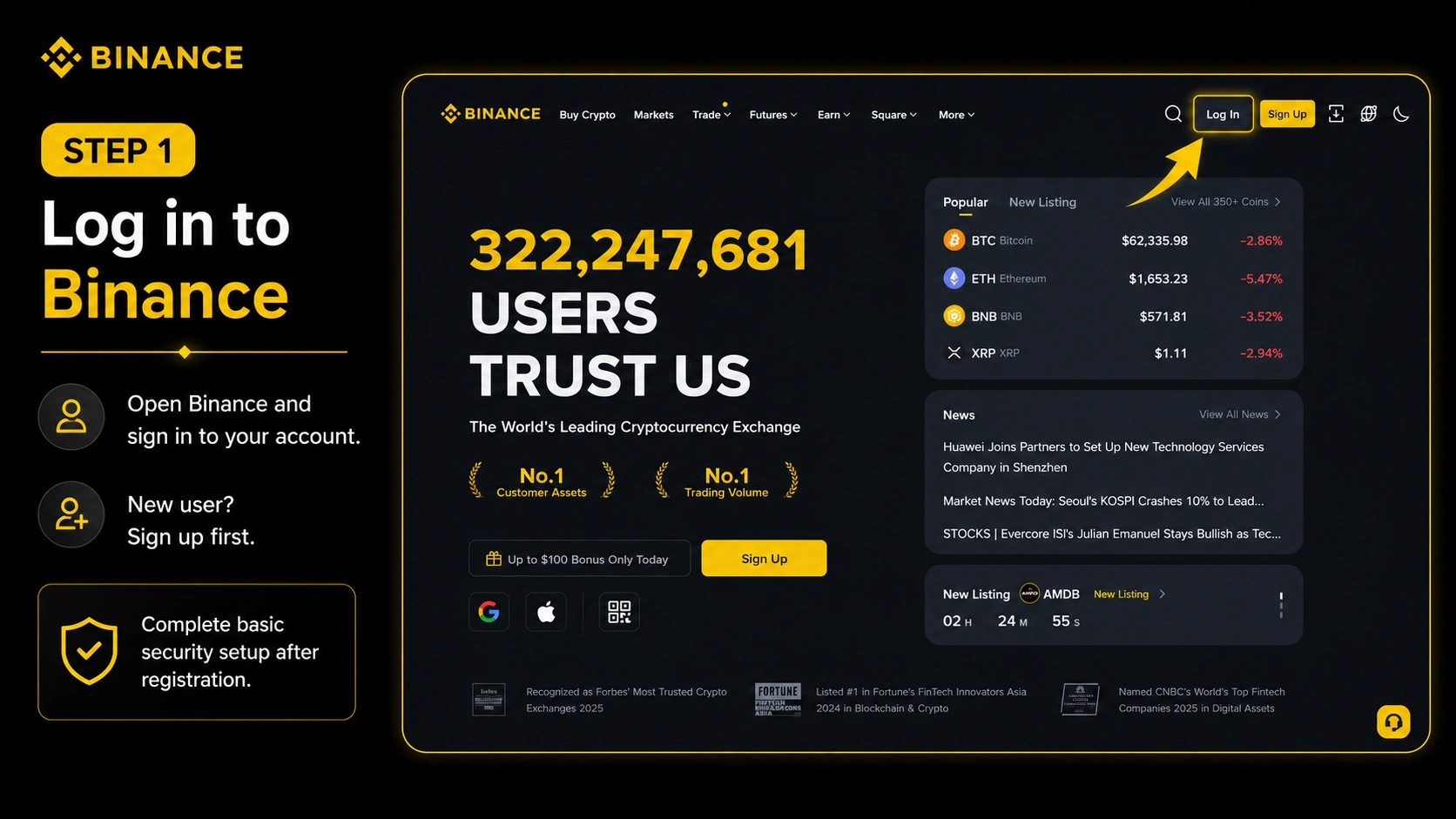
Log in to your Binance account
Open Binance and log in to your account. If you do not have an account yet, register first and complete the basic security setup.
- 2
Check access to futures
Before connecting the API, open the Futures / Derivatives section on the exchange. If the exchange shows an activation window, trading guide, risk notice, or introductory steps, confirm them and complete the short setup. Usually, this is enough to activate futures trading on the account.
- 3
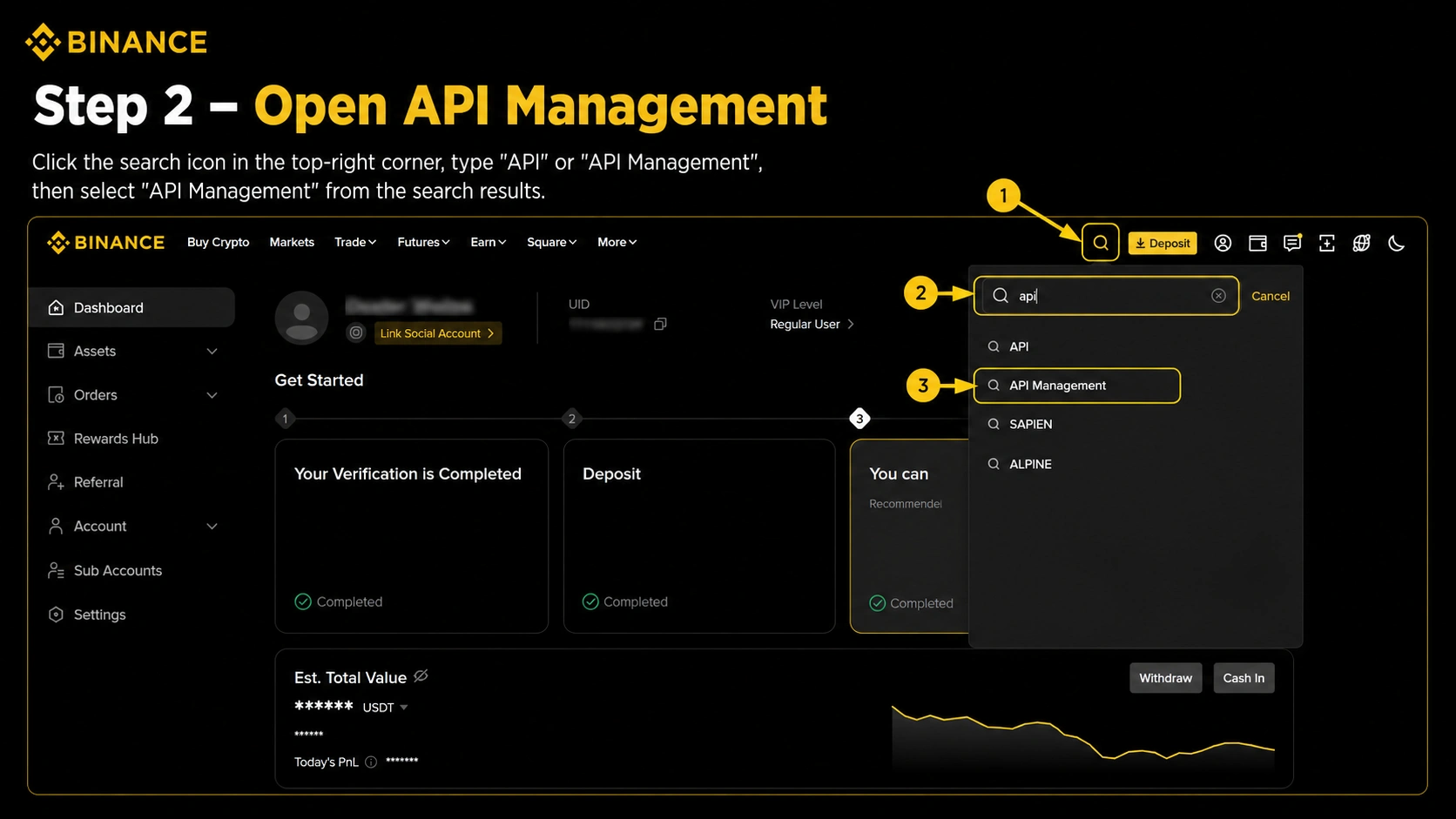
Open API Management
After logging in, click the search icon in the top-right corner, enter API or API Management, then select API Management from the search results.
- 4
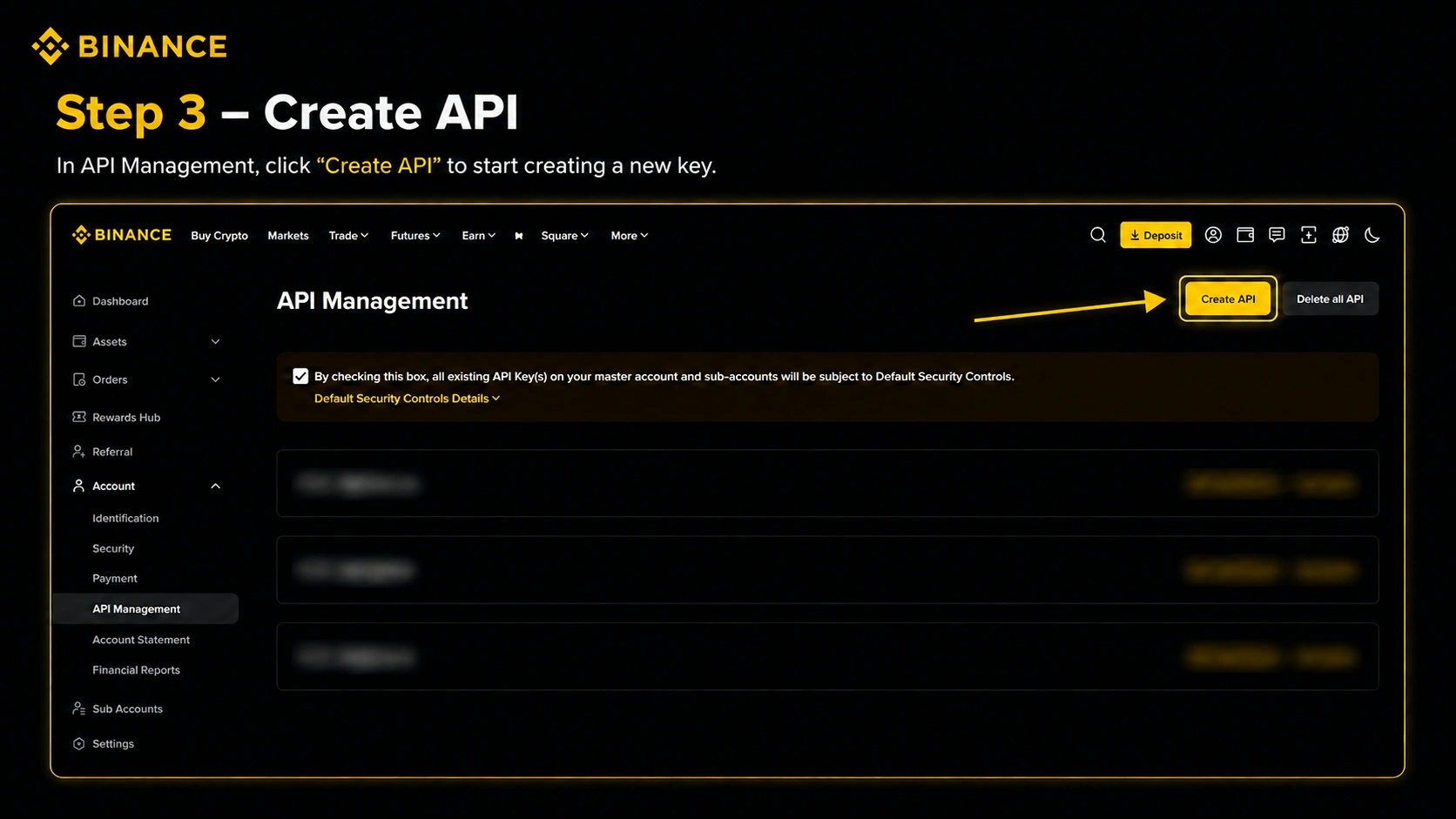
Click Create API
In the API Management section, click the Create API button to start creating a new API key.
- 5
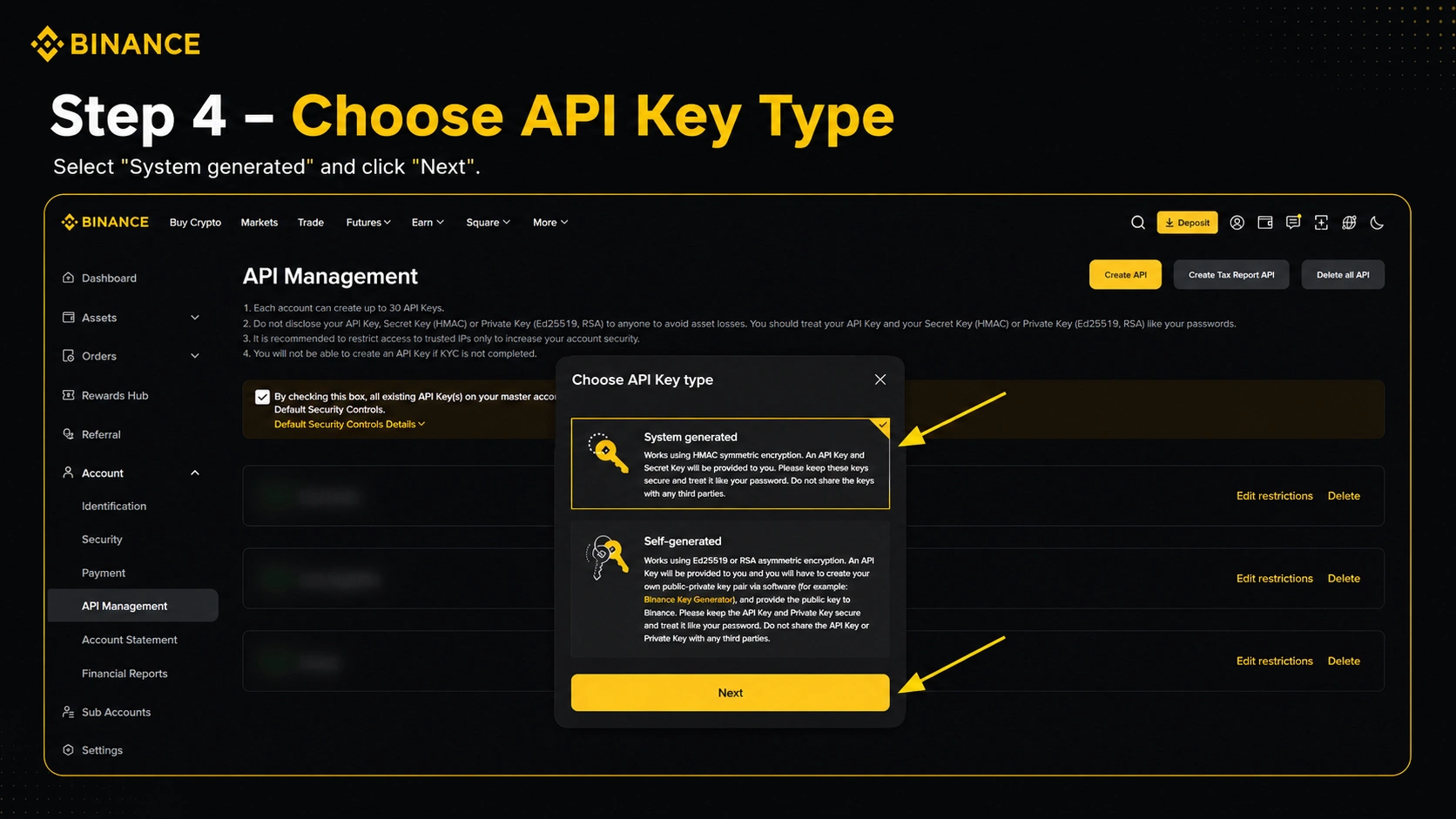
Select the API key type
If Binance offers several options, select System generated, then click Next.
- 6
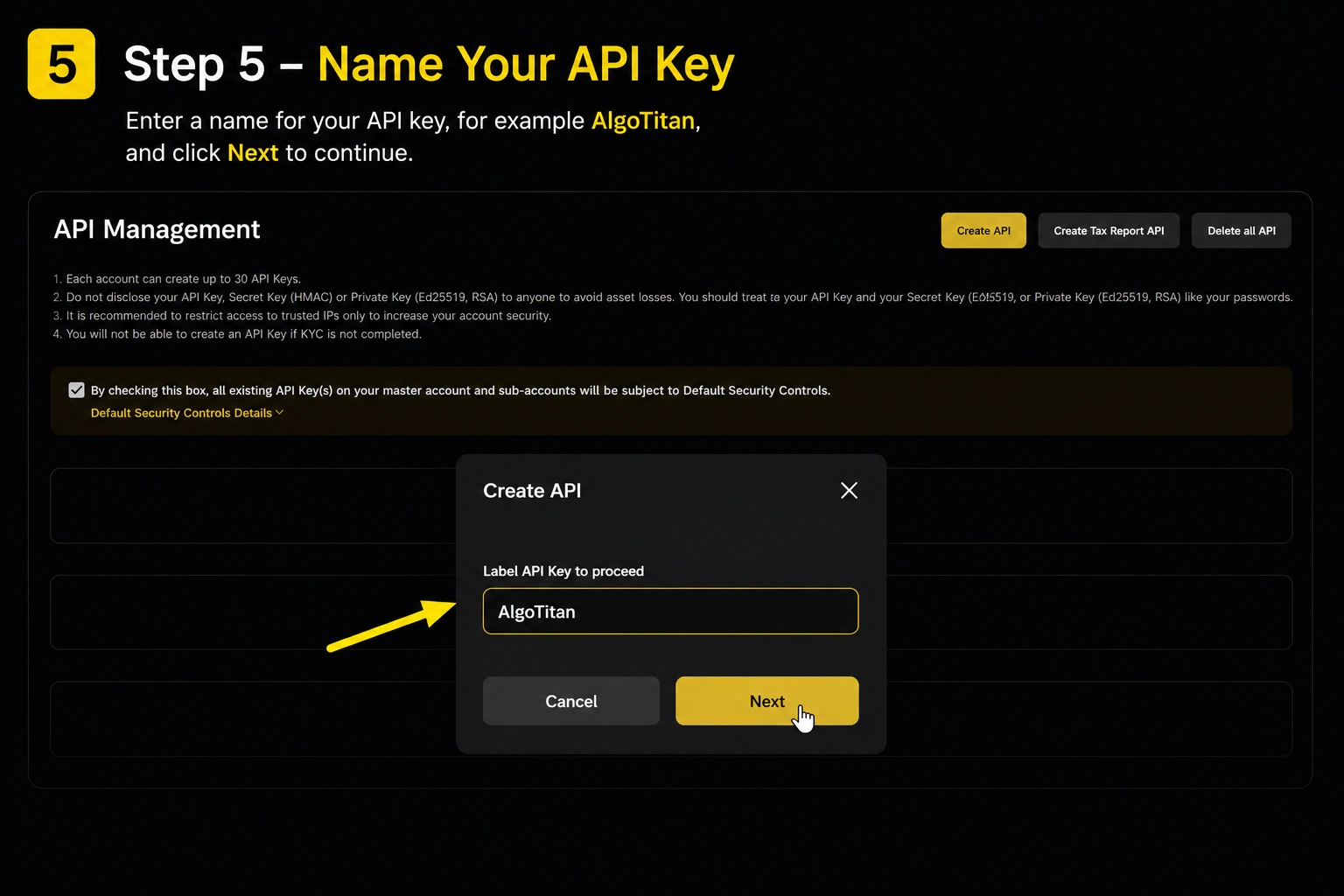
Enter the API key name
Enter the API key name, for example AlgoTitan, and click Next to continue.
- 7
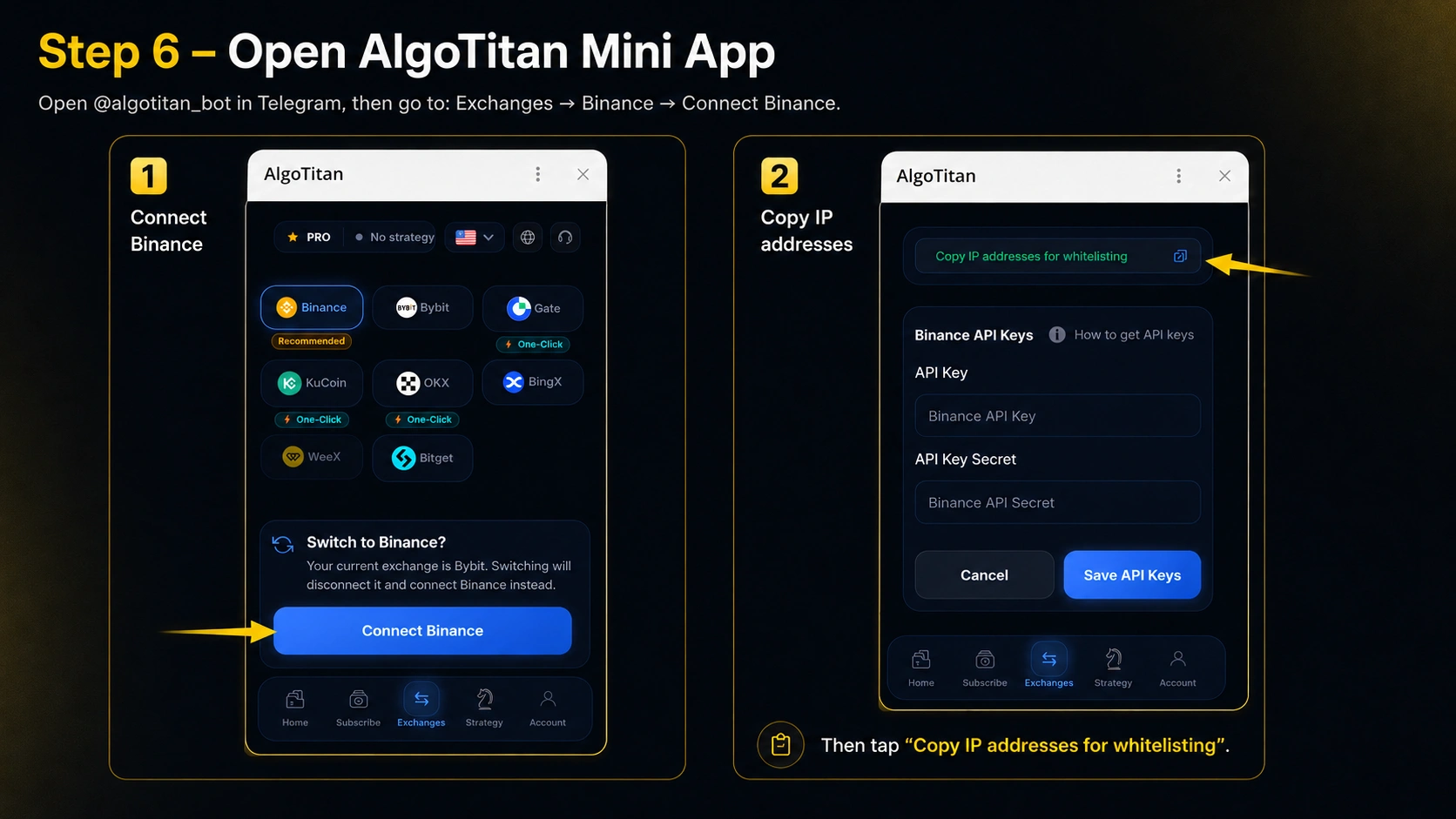
Open AlgoTitan Mini App
Go to Telegram and open @algotitan_bot.
Then go to: Exchanges → Binance → Connect Binance.
Immediately copy in the Mini App – Copy IP addresses for whitelisting
- 8
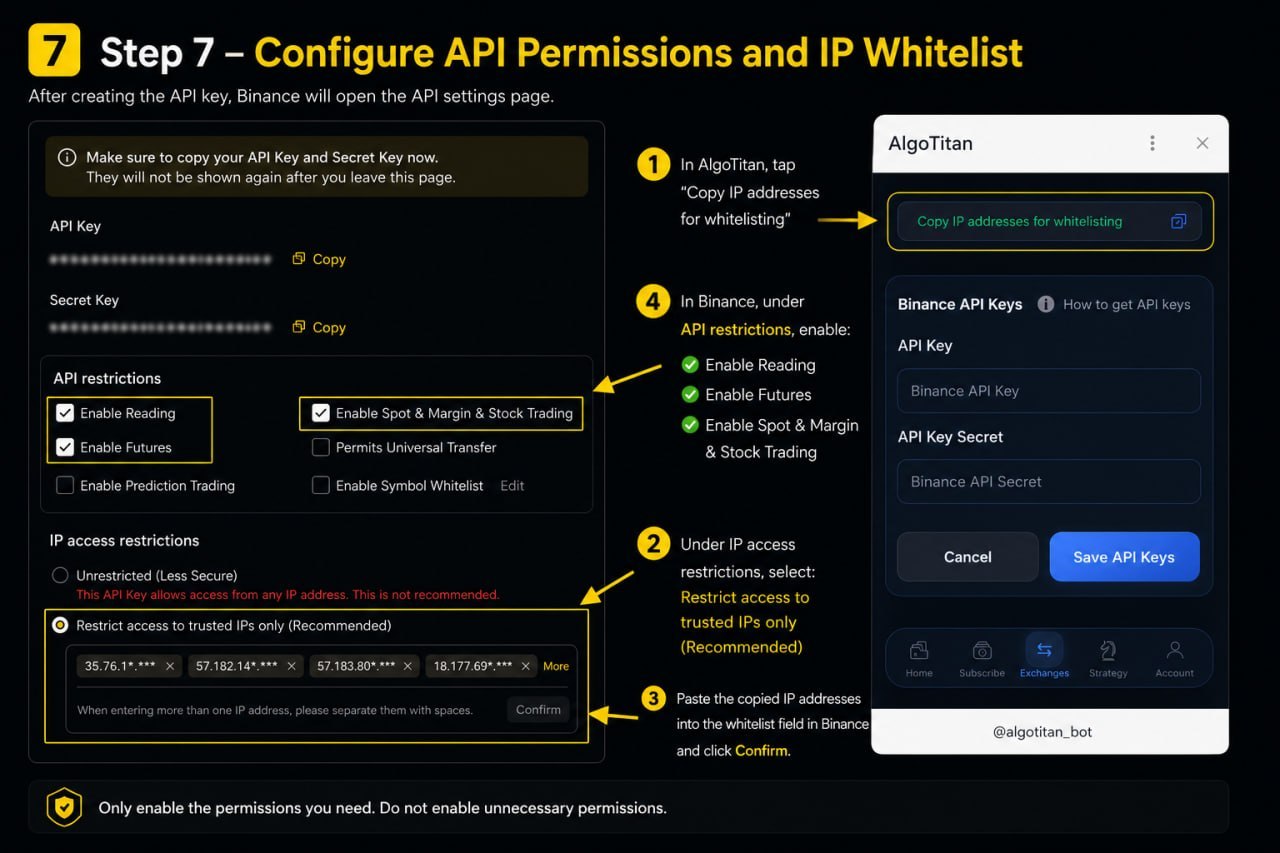
Configure API permissions and IP whitelist
After creating the key, Binance will open the API settings page. Click “Edit restrictions”.
In the IP access restrictions section, select:
Restrict access to trusted IPs only (Recommended)
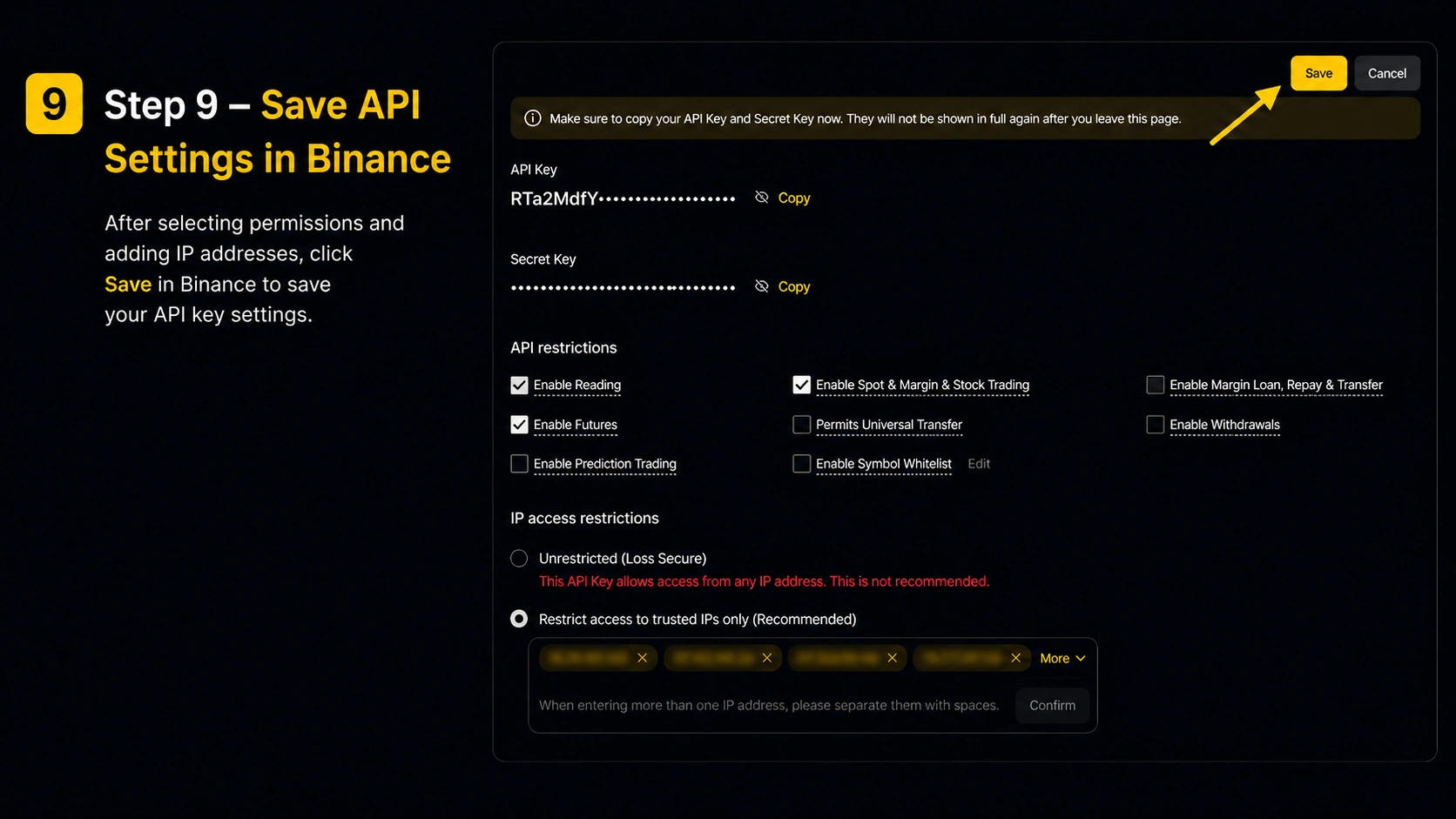
After that, in AlgoTitan, paste the IP addresses into the whitelist field. In the API restrictions section, enable:
- Enable Reading
- Enable Futures
- Enable Spot & Margin & Stock Trading
Do not enable extra permissions if they are not needed for AlgoTitan to work.
- 9
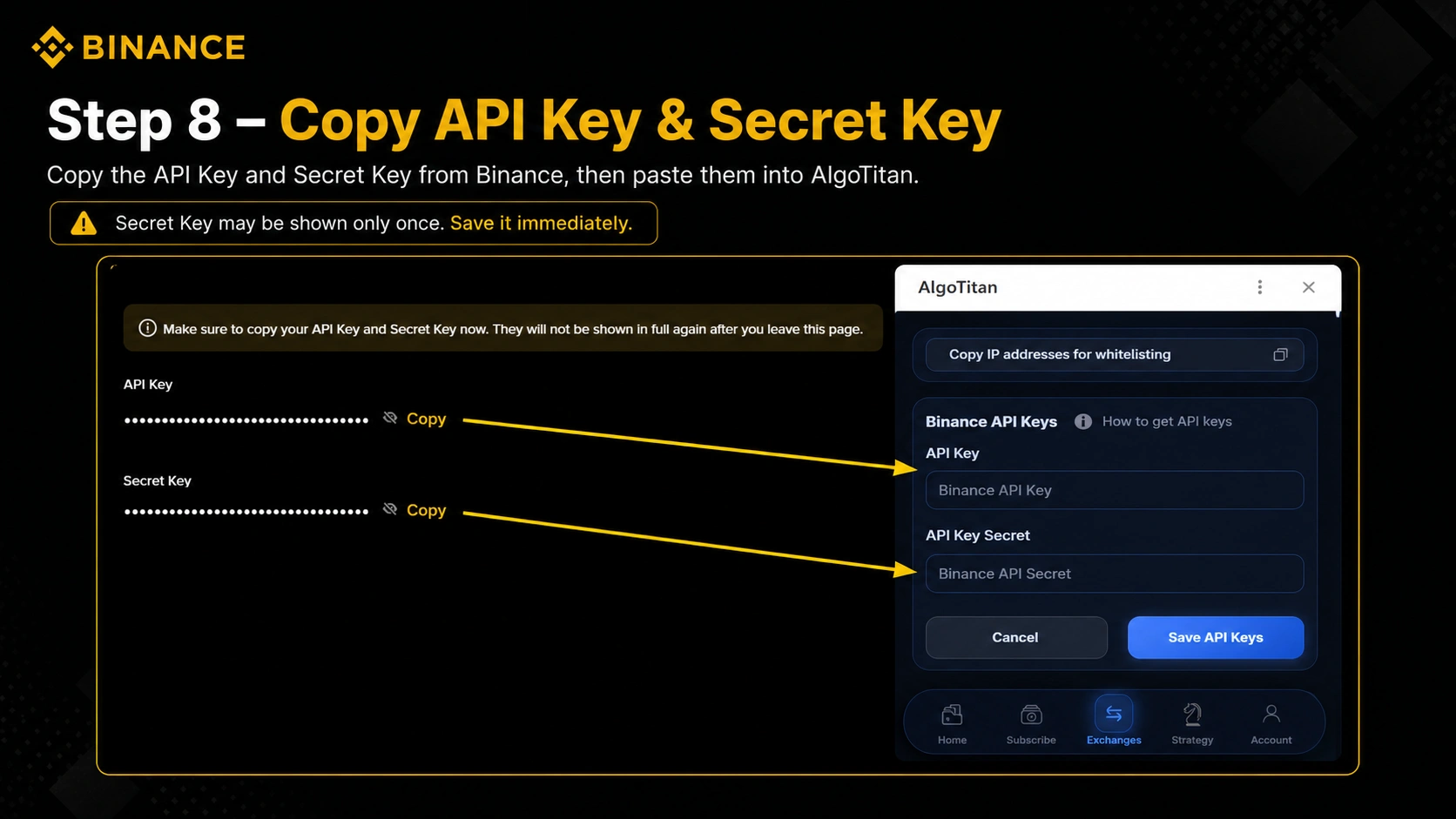
Copy API Key and Secret Key
On the Binance page, copy:
- API Key
- Secret Key
Important
Secret Key may be shown only once, so save it immediately.
- 10
Save API settings in Binance
After selecting permissions and adding IP addresses, click Save in Binance to save the API key settings.
- 11
Paste the keys into AlgoTitan and check the connection
Return to AlgoTitan Mini App and paste:
- API Key
- API Key Secret
Then click Save API Keys.
If everything is done correctly, AlgoTitan will show a notification that the keys were successfully saved, for example
credentials_stored_successfully. After that, Binance will be considered connected.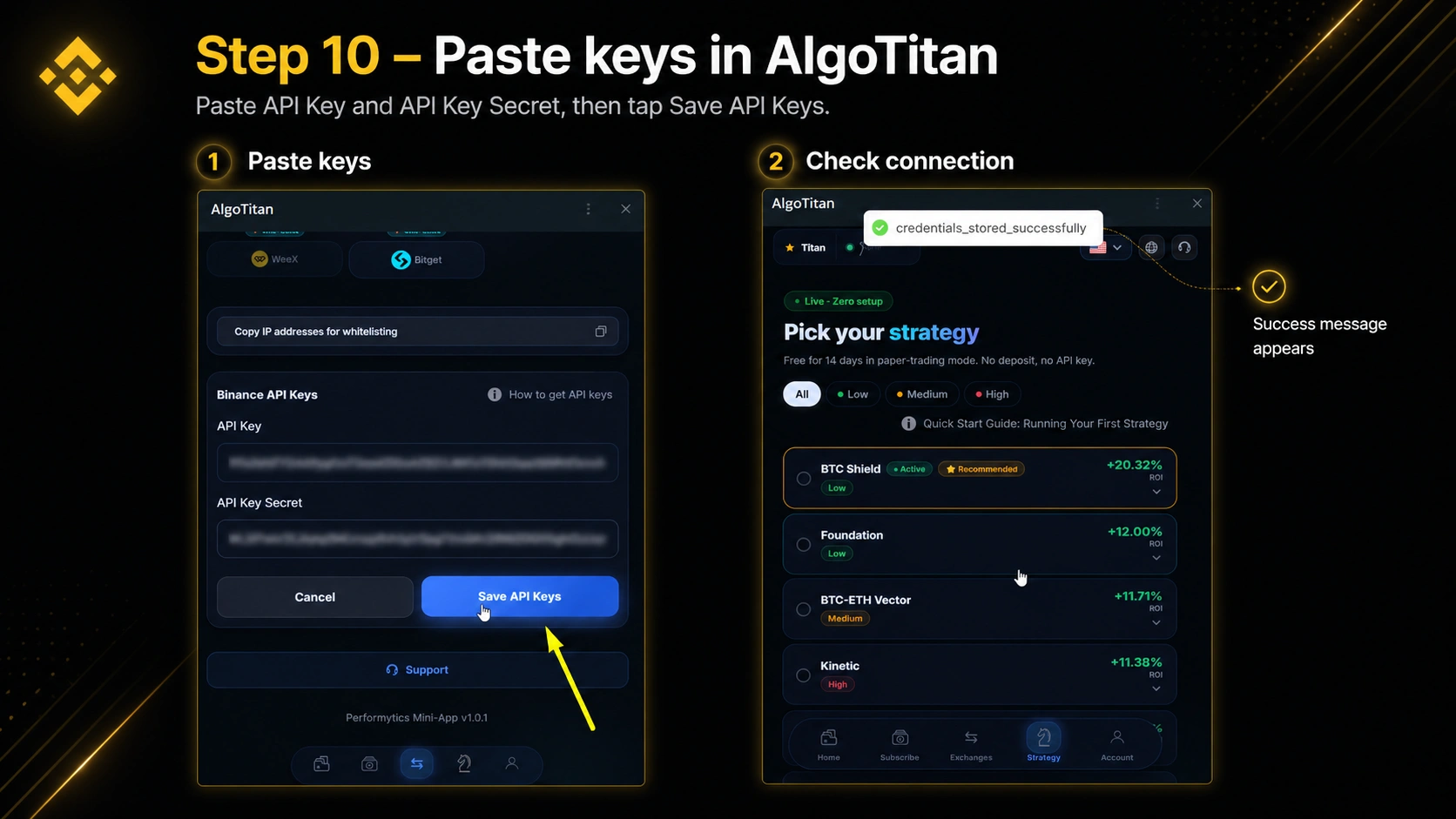
Binance notes
On Binance, Secret Key is shown only once after creating the API key, so it must be copied and saved immediately. To connect AlgoTitan, it is important to select Restrict access to trusted IPs only and not leave the API without IP restrictions. IP addresses from AlgoTitan must be pasted into Binance in the format accepted by the exchange. After adding them, Binance may display them as separate IP tags. AlgoTitan requires trading permissions, but withdrawal access must not be enabled. If you have just registered a Binance account, the exchange may require basic identity verification before creating an API key or using trading functions.