
Bybit API Connection Guide
- 1
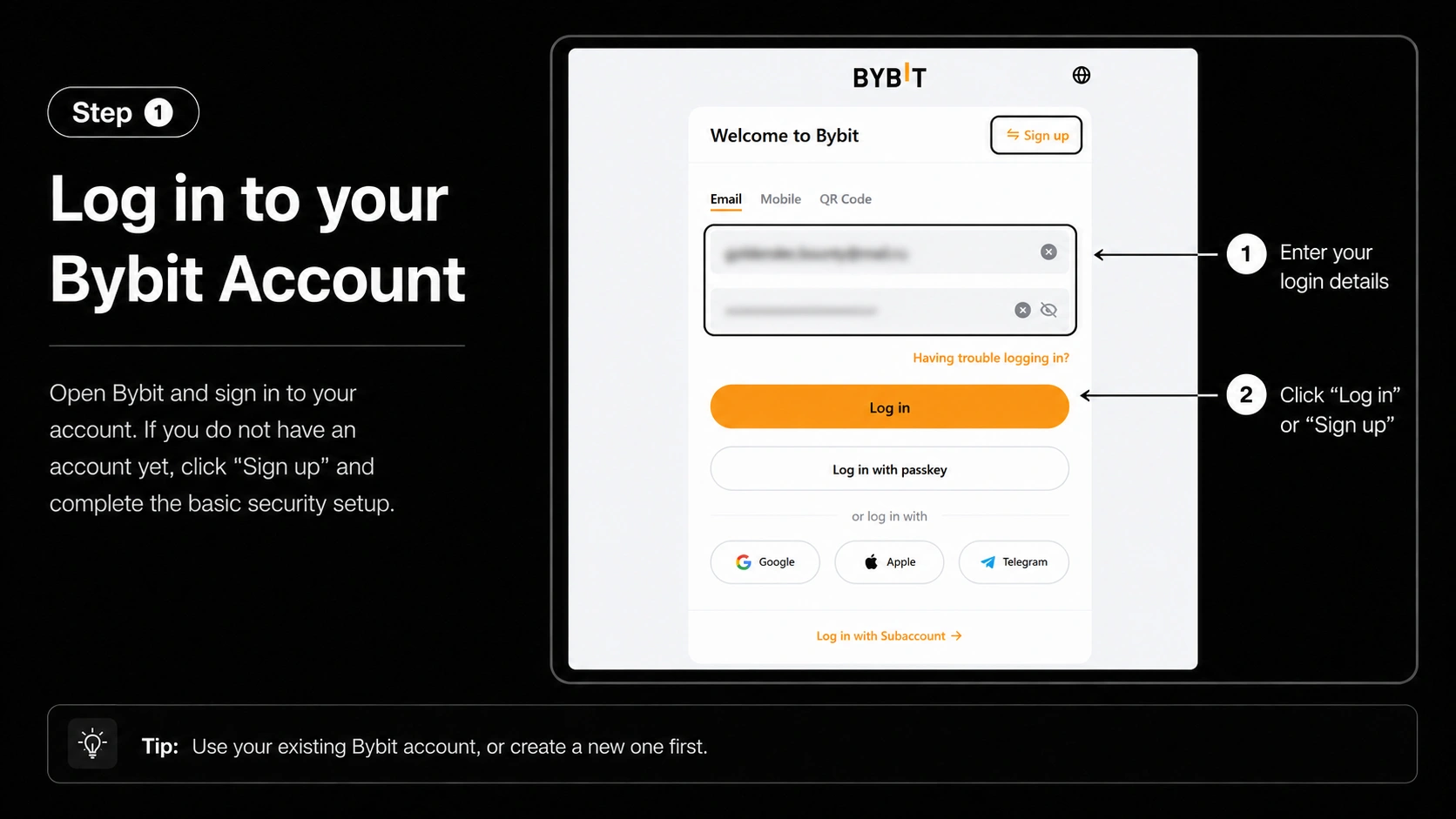
Log in to your Bybit account
Open Bybit and log in to your account. If you do not have an account yet, create one first and complete the basic security setup.
- 2
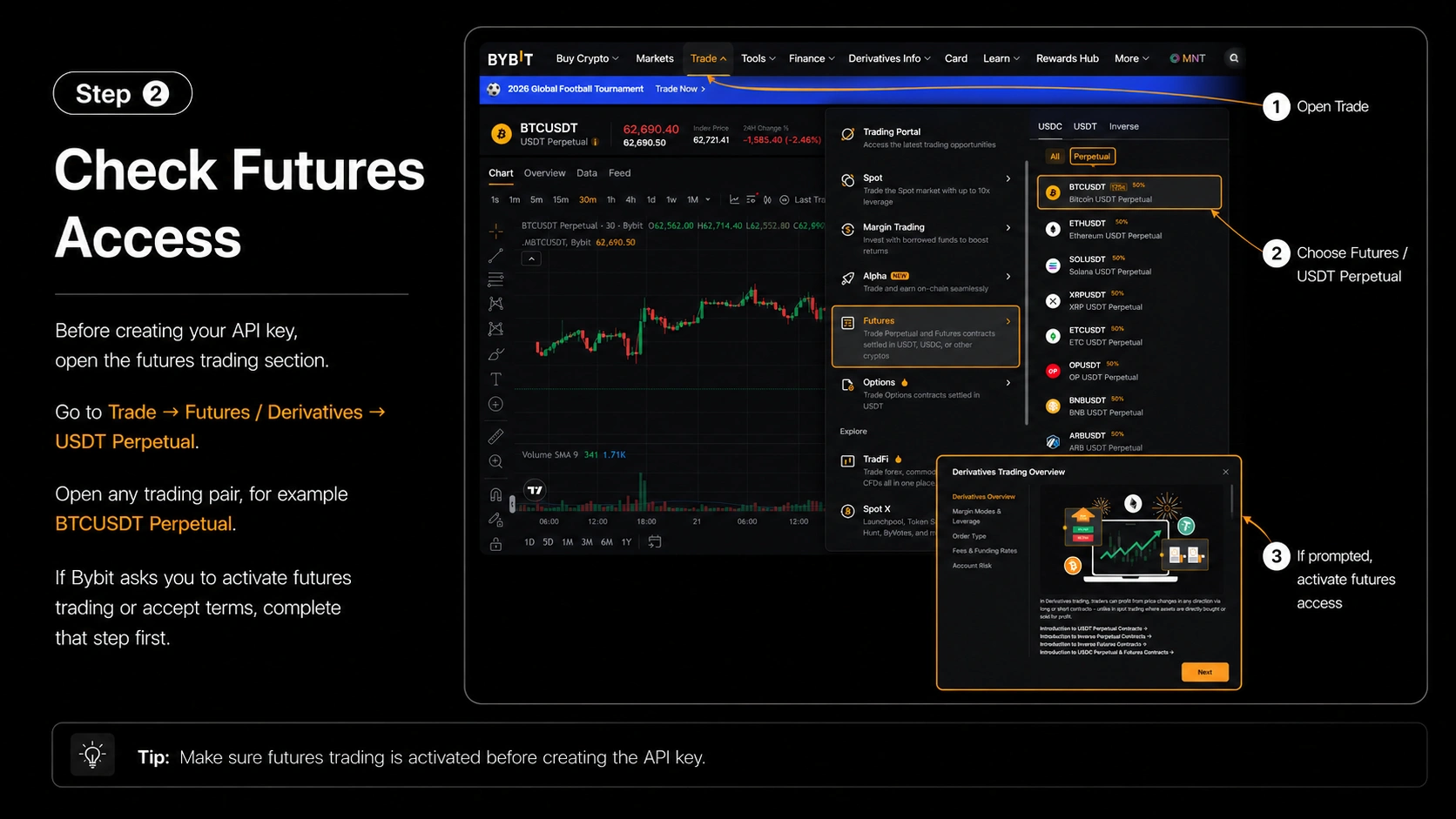
Check access to futures
Before creating an API key, open the futures trading section.
Go to: Trade → Derivatives / Futures → USDT Perpetual
Open any trading pair, for example BTCUSDT Perpetual.
If Bybit asks you to activate futures trading or accept the terms, complete this step.
- 3
- 4
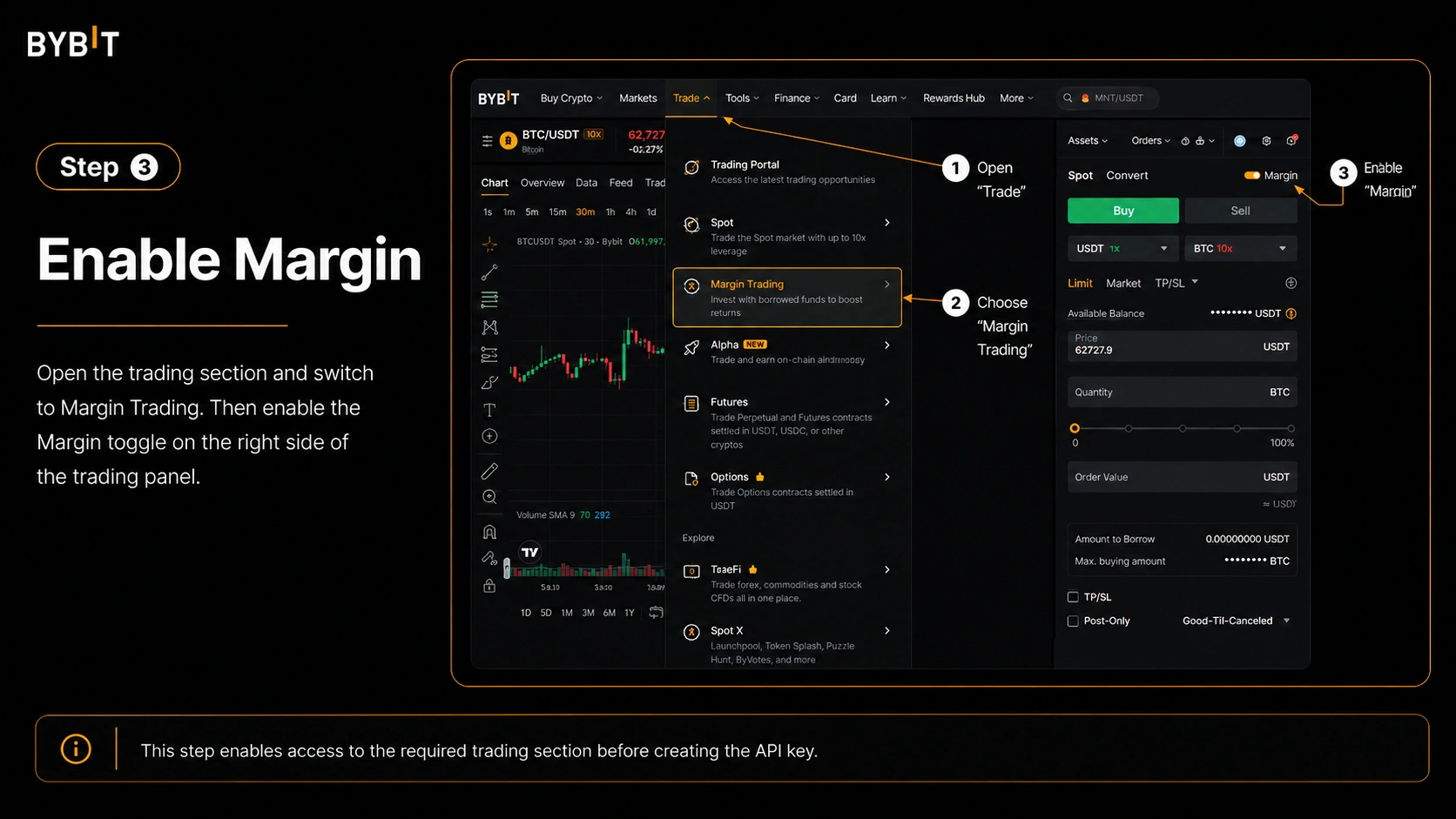
Enable Margin
On the API key creation page, find the permissions section and enable the Margin toggle. This is needed so that the API key can access the required Bybit trading section.
- 5
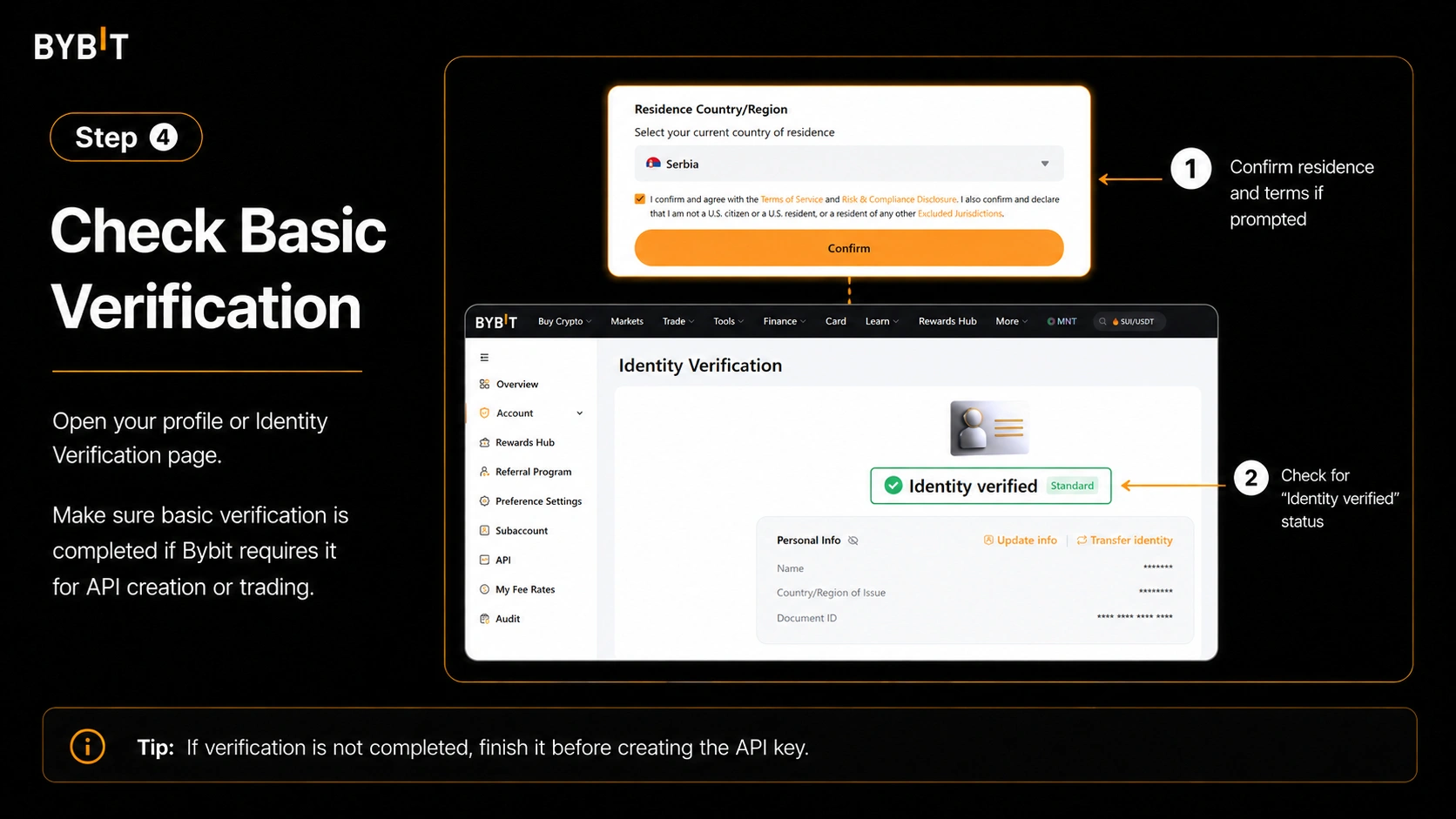
Check basic account verification
Make sure that basic verification has been completed on the account if Bybit requires it for API creation or trading. The verification status can usually be found in the profile section or identity verification section.
- 6
Go to API Management
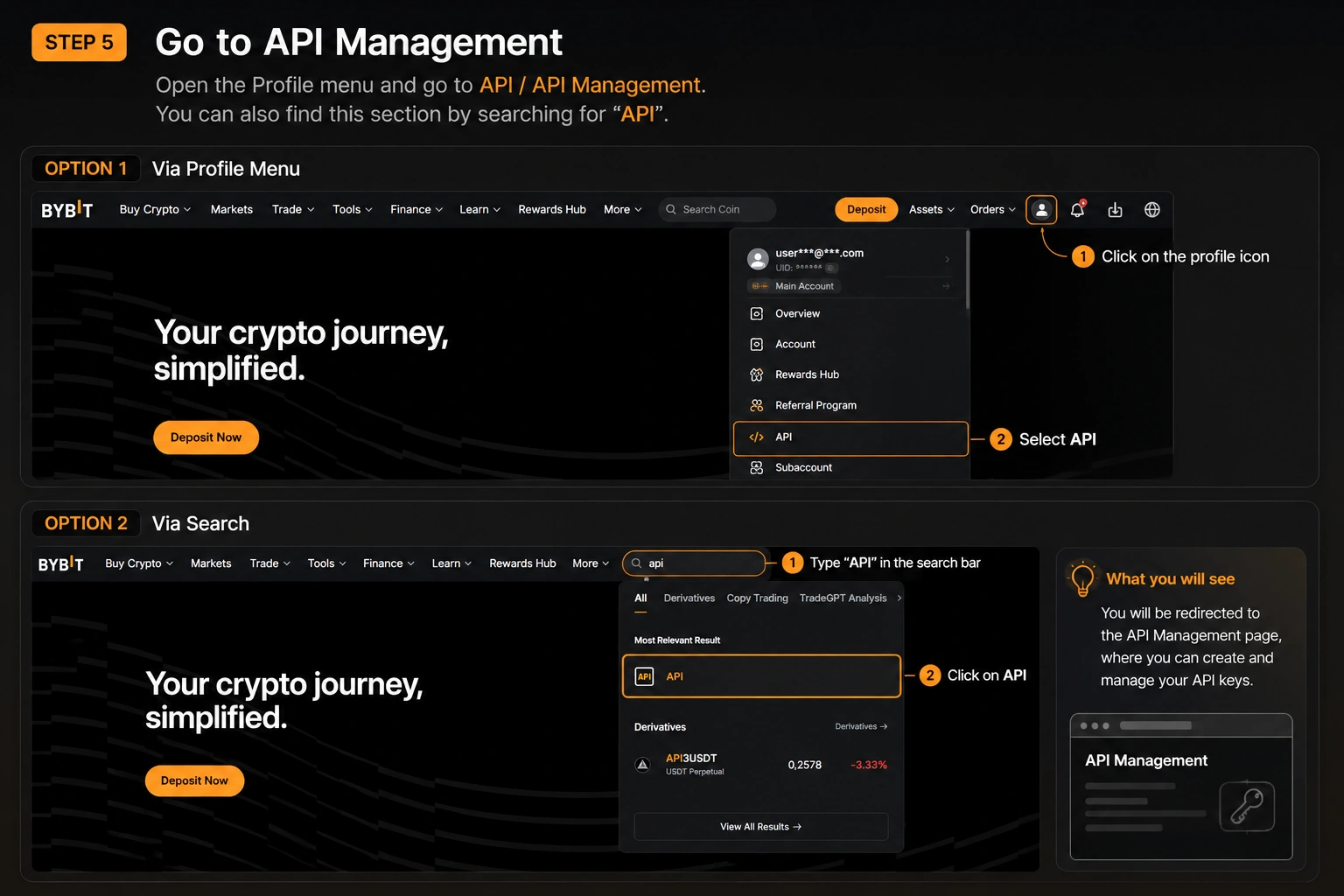
Open the profile menu and go to API / API Management.
You can also find this section by searching for API.
- 7
Create a new API key
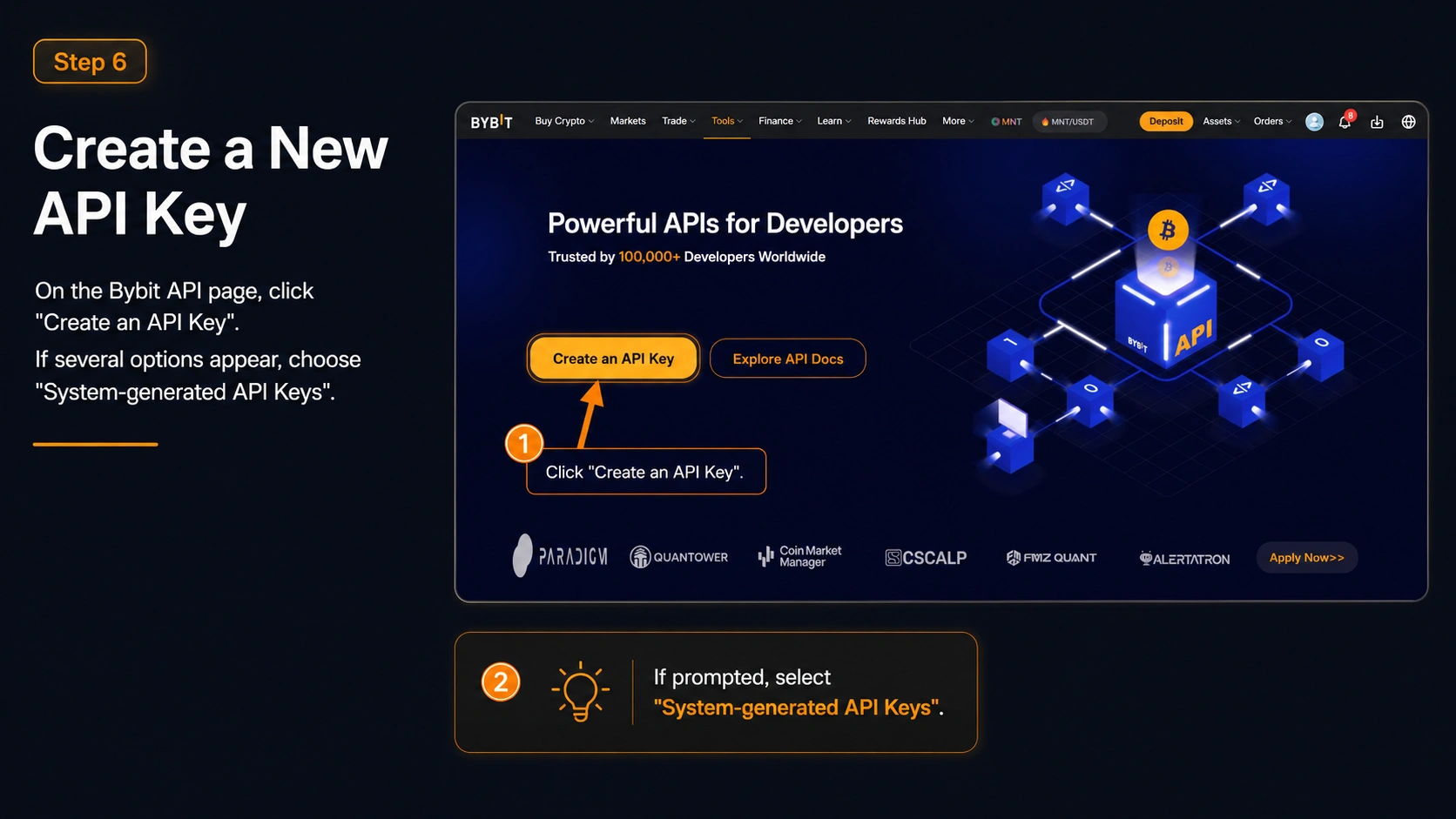
Click Create New Key to start creating a new API key.
If Bybit offers several options, select System-generated API Keys.
Note: sometimes the Create New Key button may not respond immediately. If this happens, click it again or refresh the page and repeat the action.
- 8
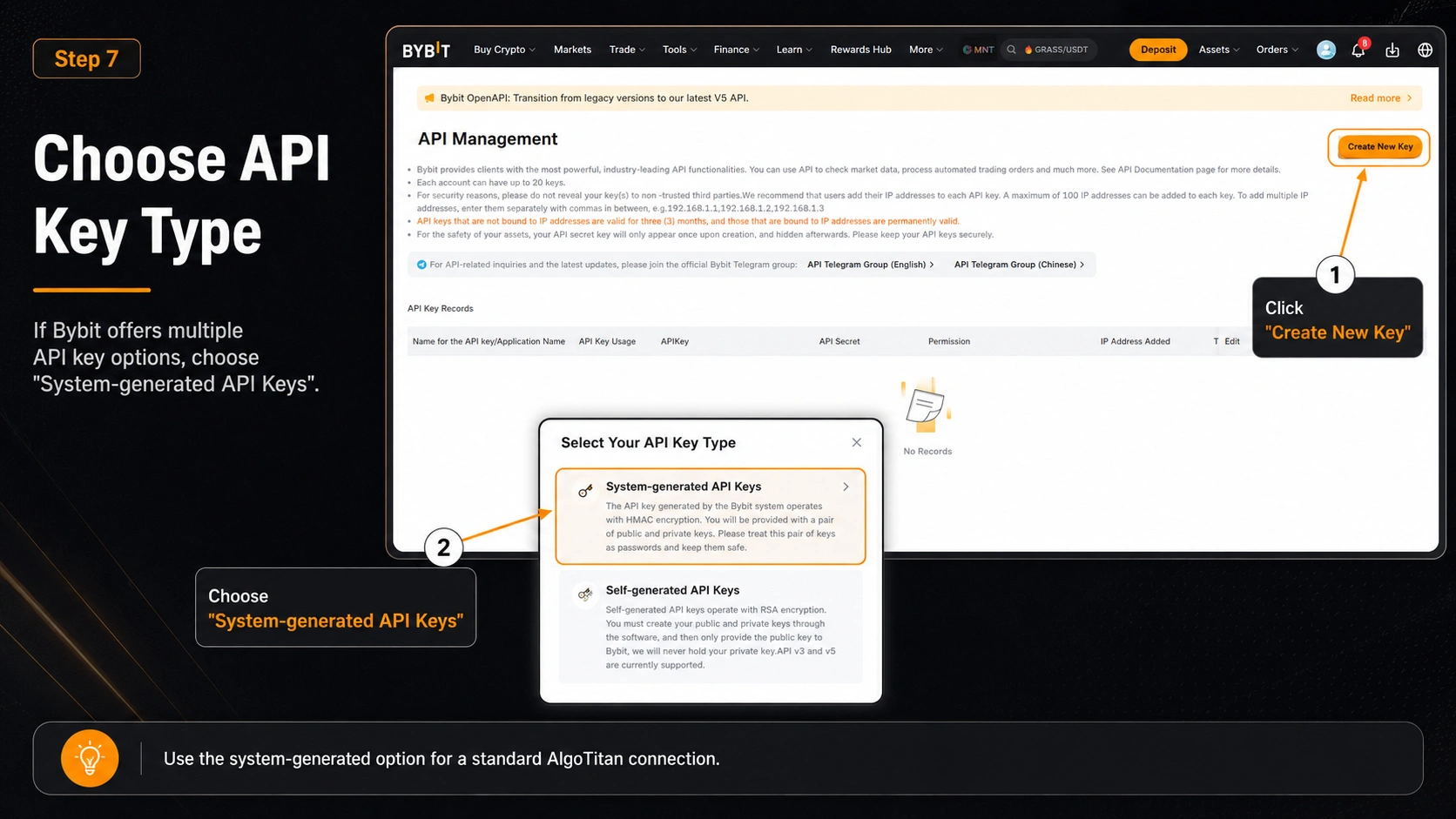
Select the API key type
Select System-generated API Keys if the exchange offers several options.
- 9
Set the main API parameters
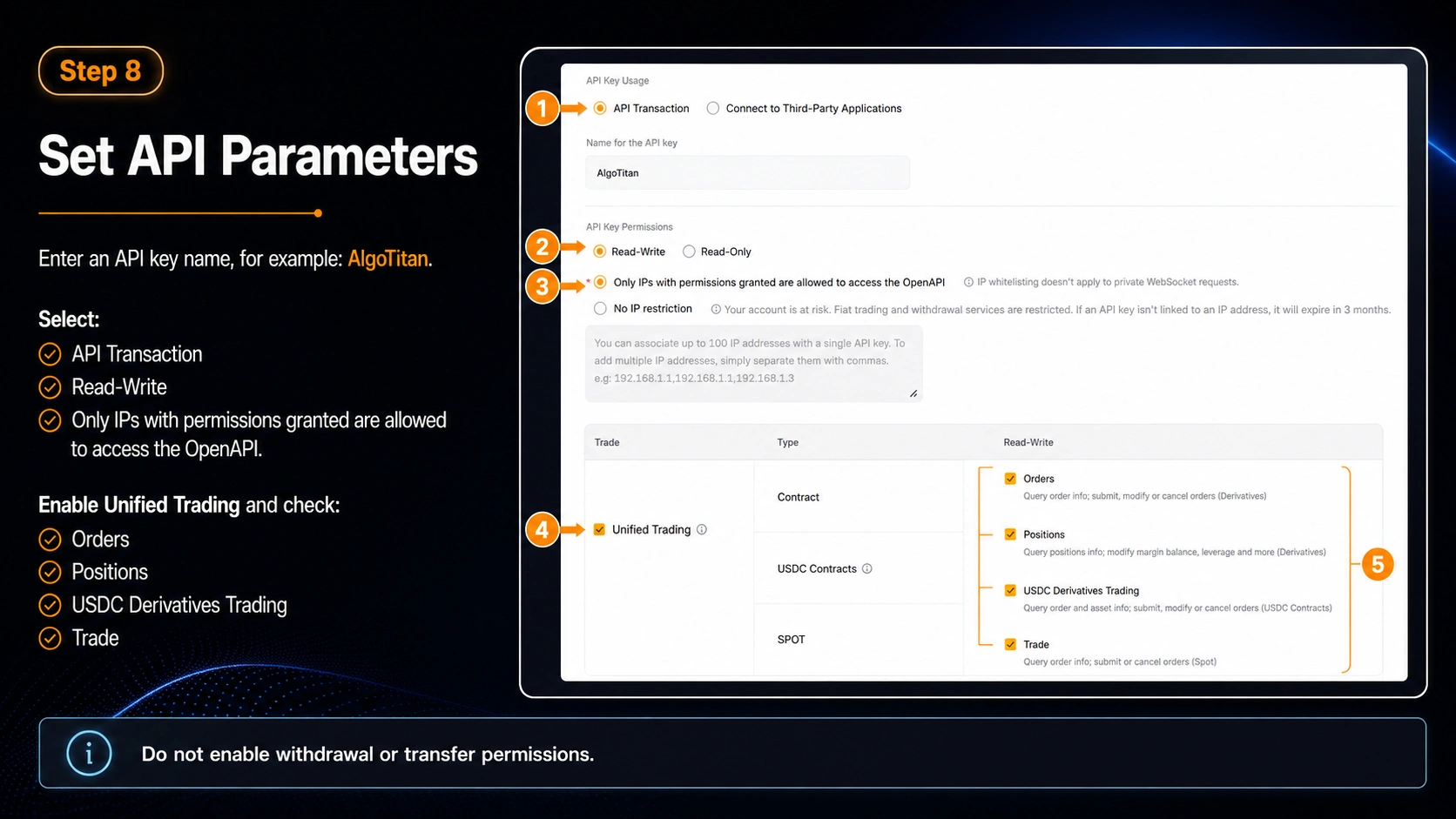
Enter the API key name, for example: AlgoTitan
In the settings, select:
API Transaction
Write name for example “AlgoTitan”
Read-Write
Only IPs with permissions granted are allowed to access the OpenAPIIn the permissions section, enable Unified Trading.
Then enable the required permissions:
- Orders
- Positions
- USDC Derivatives Trading
- Trade
- 10
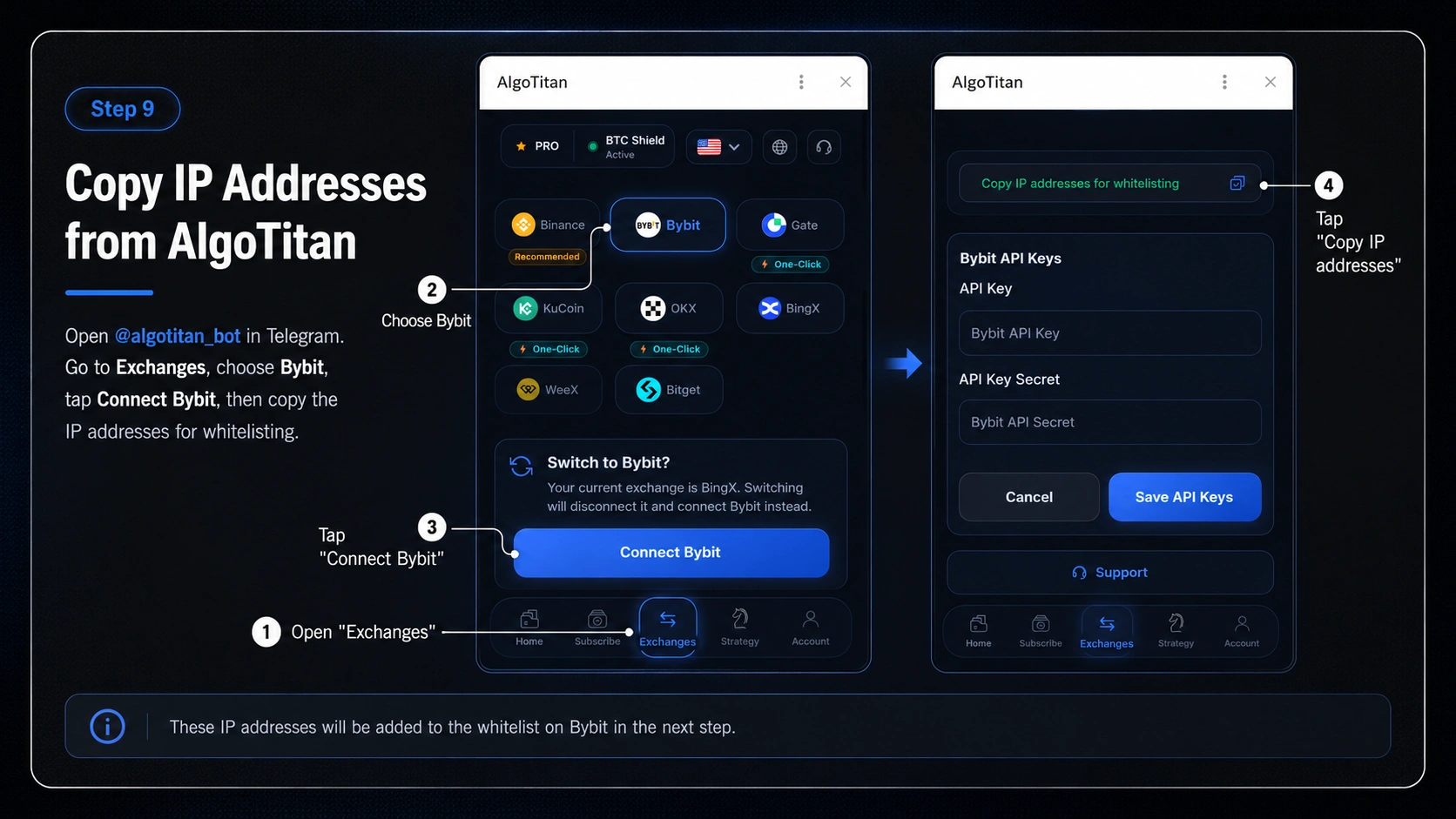
Copy IP addresses from AlgoTitan
Open @algotitan_bot in Telegram.
Go to: Exchanges → Bybit → Connect Bybit
Click Copy IP addresses for whitelisting.
- 11
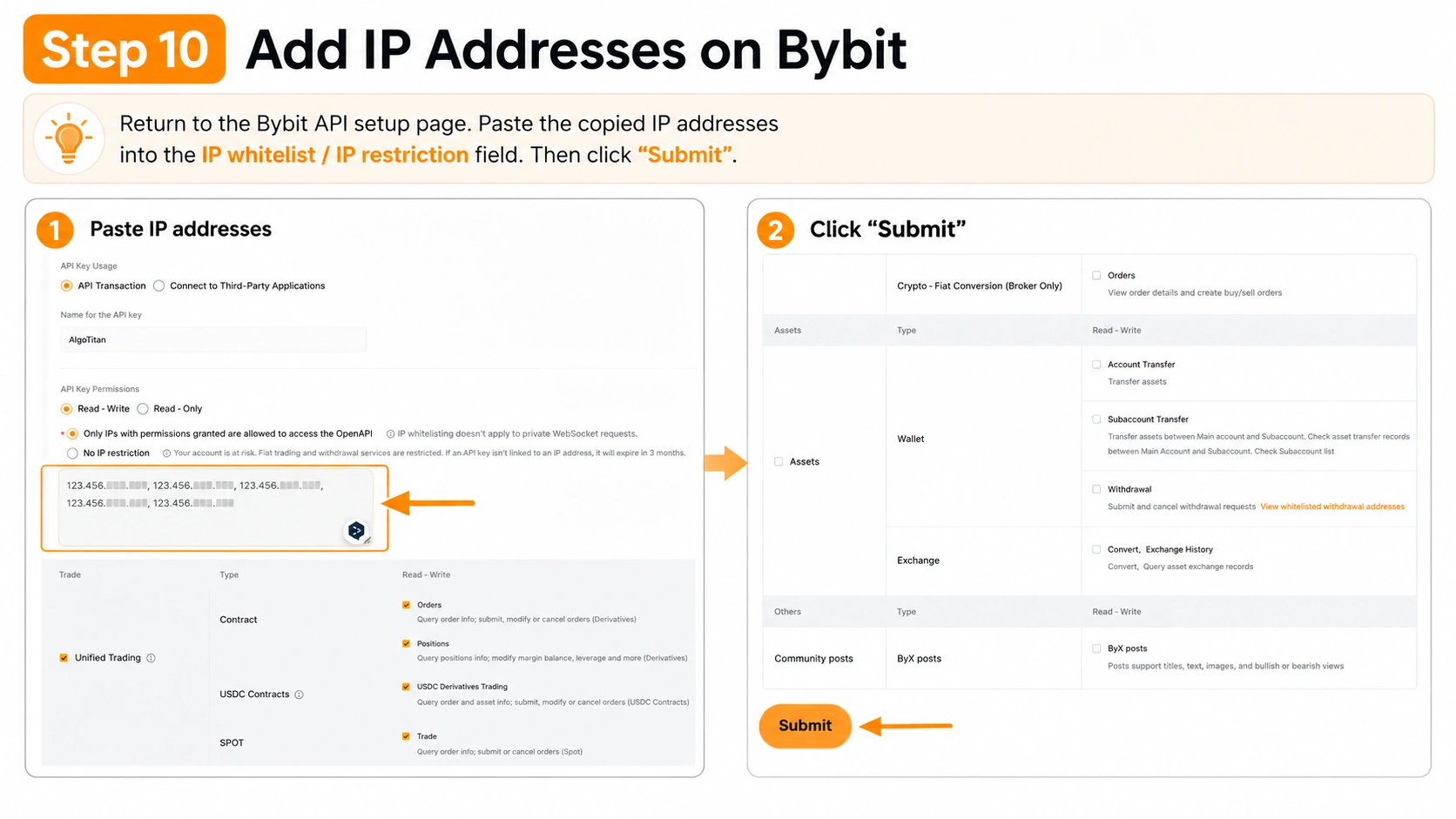
Paste IP addresses on Bybit
Return to the API key creation page on Bybit.
Paste the copied IP addresses into the IP whitelist / IP restriction field.
After that, click Submit.
- 12
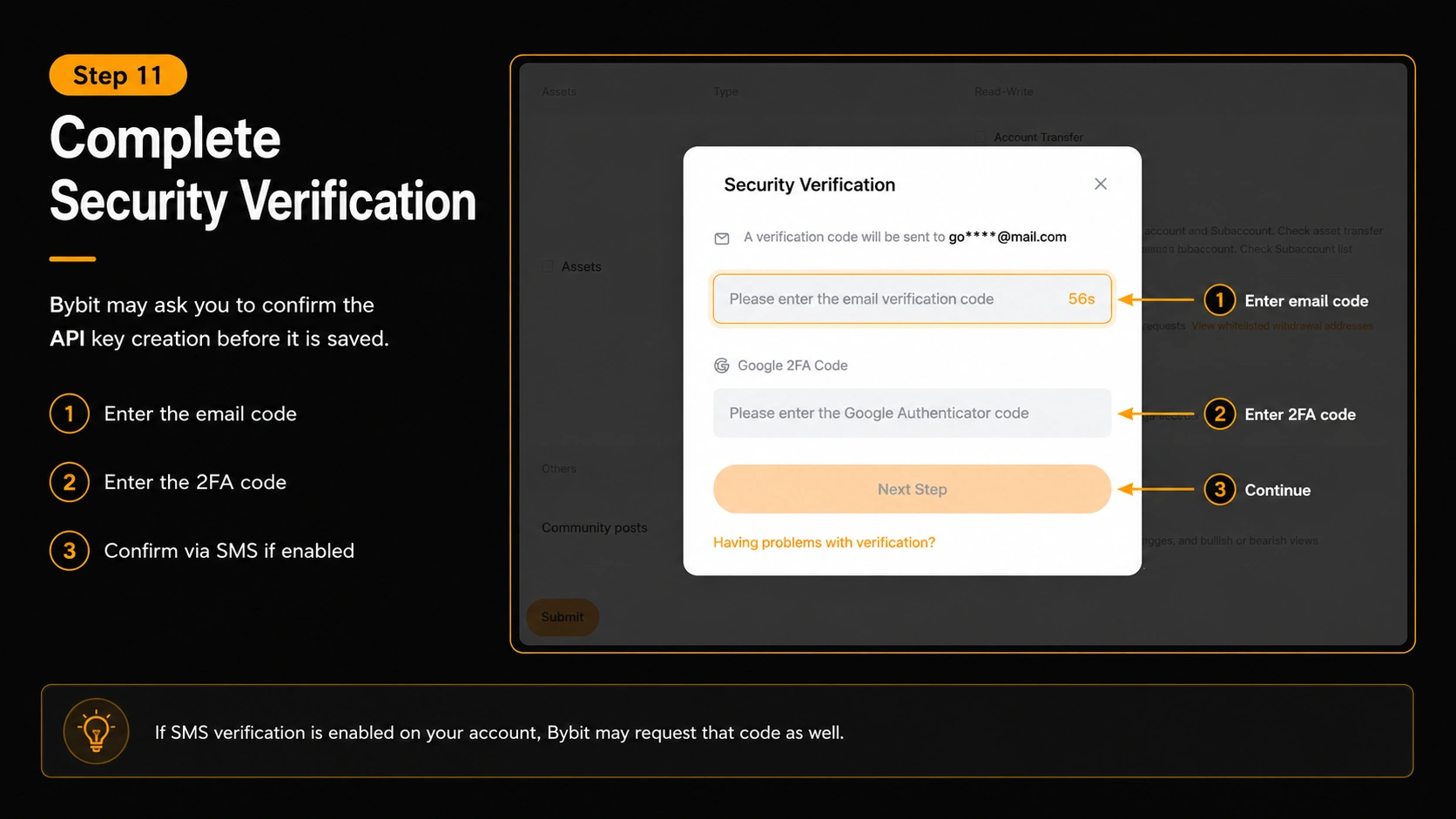
Complete security verification
Bybit may ask you to confirm the API key creation.
Confirm the action through:
- email code
- 2FA code
- SMS code, if enabled
- 13
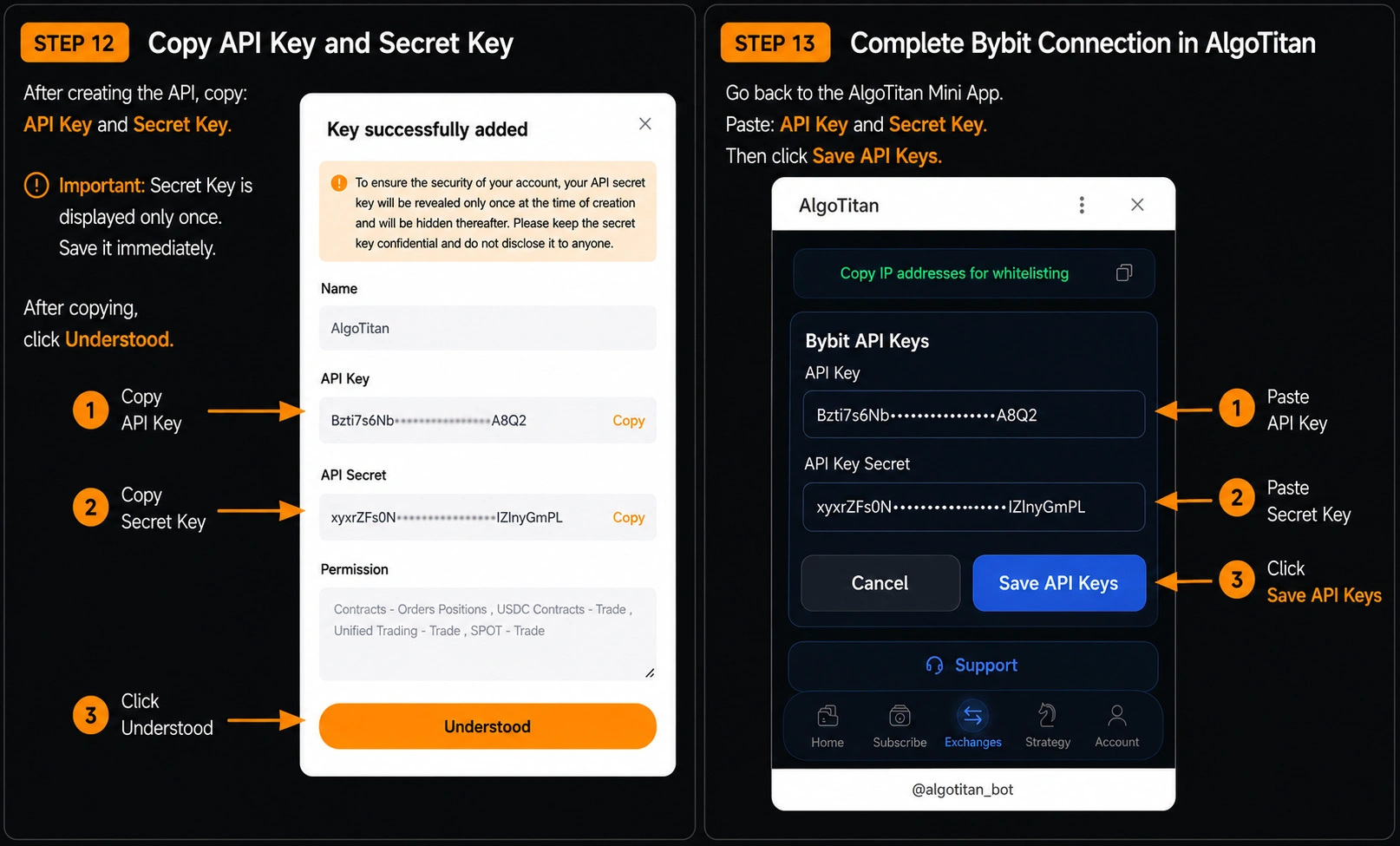
Copy API Key and Secret Key
After creating the API, copy:
- API Key
- Secret Key
Important
Secret Key may be shown only once. Save it immediately.
After copying, click Understood.
- 14
Complete the Bybit connection in AlgoTitan
Return to AlgoTitan Mini App.
Paste:
- API Key
- Secret Key
Then click Save API Keys.
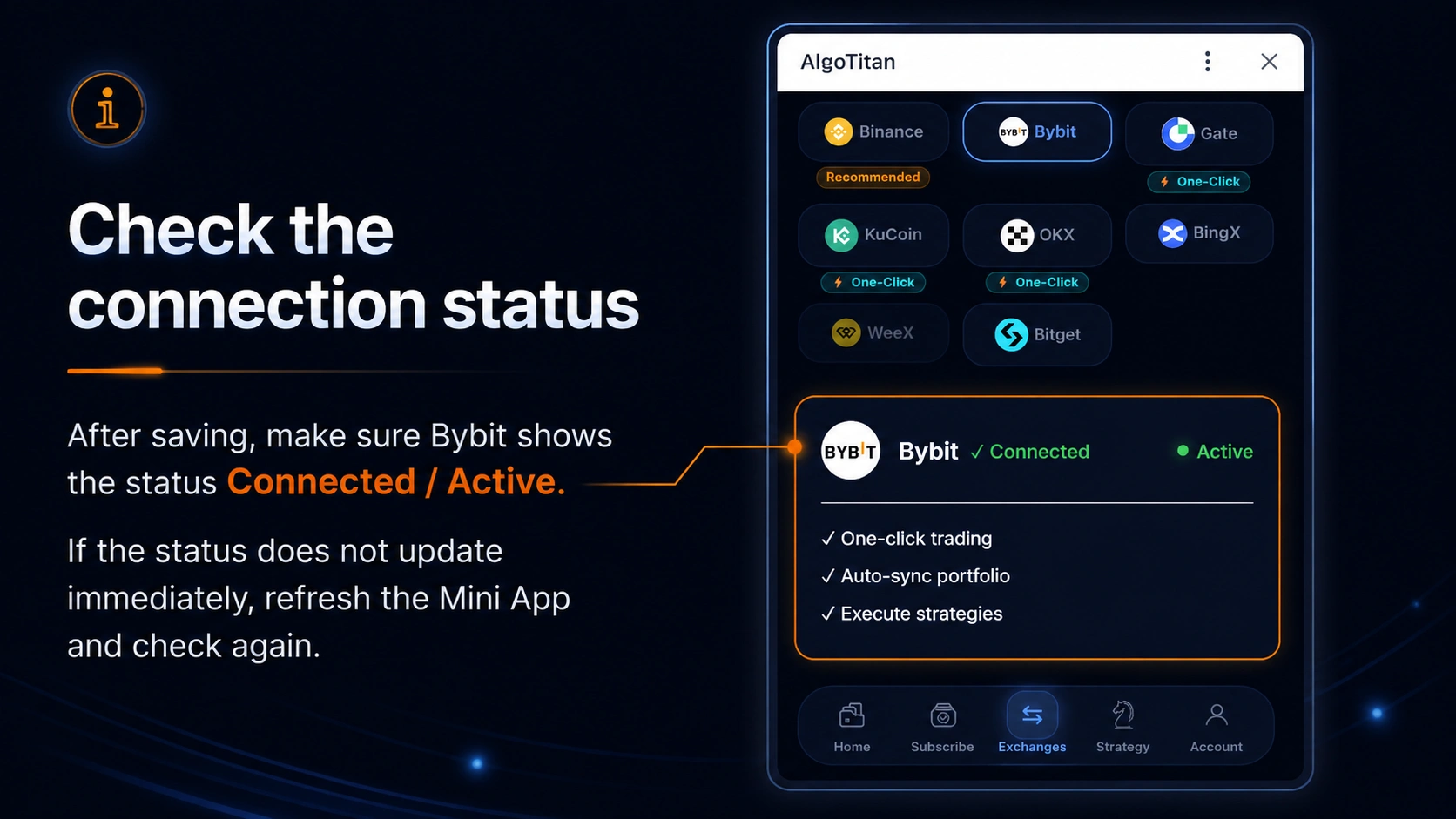
After saving, check the connection status. If everything is connected correctly, the status next to Bybit should show Connected / Active.
Bybit notes
Before creating an API key on Bybit, make sure that futures trading is already activated on your account. To connect AlgoTitan, the API key must be created in Read-Write mode and must have permissions for Unified Trading. If the connection does not work, check whether the Orders, Positions, USDC Derivatives Trading, and Trade permissions are enabled. Also make sure that the IP addresses for whitelisting were added correctly. Do not enable withdrawal permissions or internal transfers.